
Staff Charges and Billing
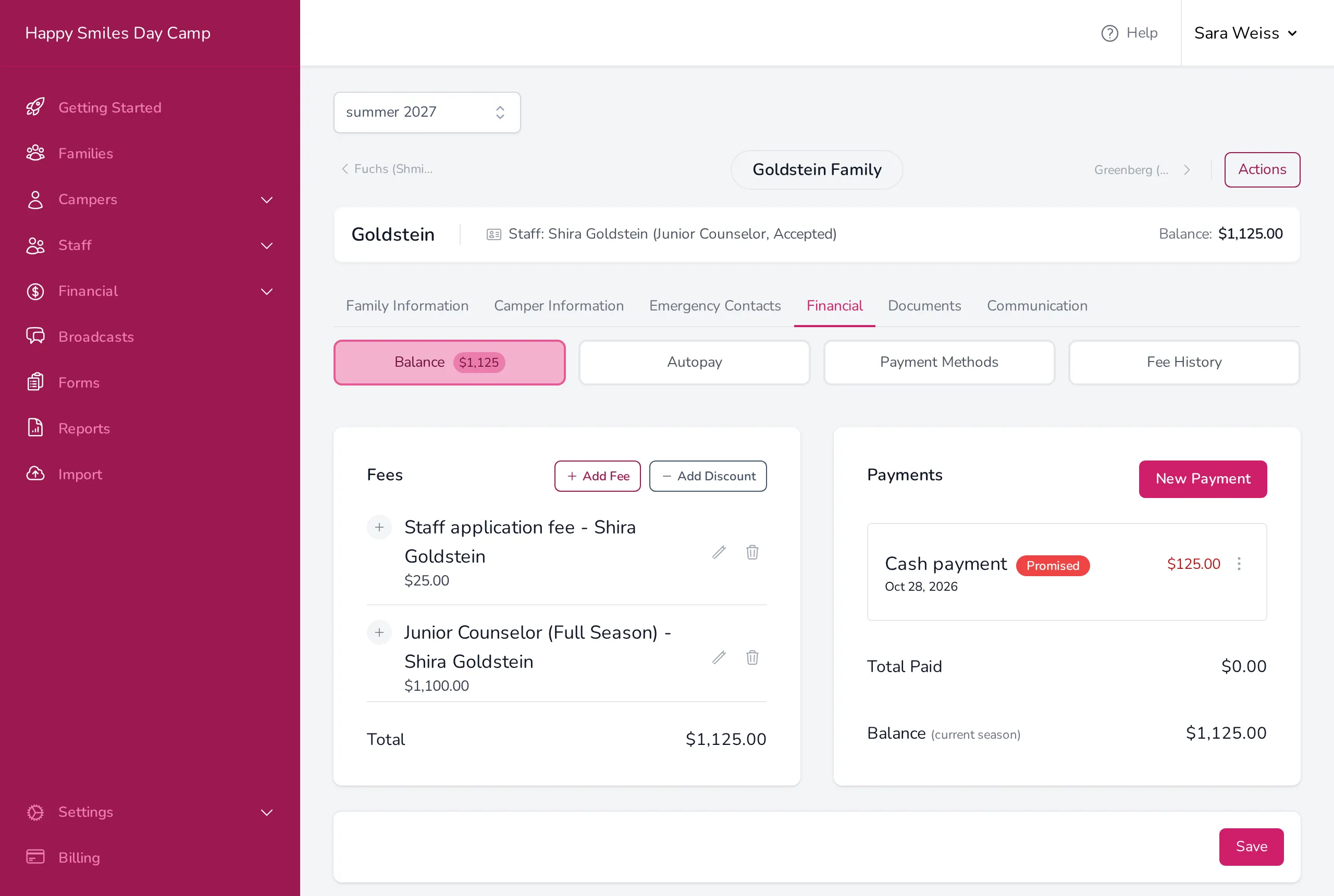
Some staff pay your camp — an application fee, a deposit, or a price for jobs they pay to have, like junior counselors. Campflow bills these to a family, so they show on that family’s Financial tab with the same balance, payments, receipts, and refunds as any camper charge. This article explains what is charged, where it goes, and how it changes as you hire people.
Charges only apply when you set a price, in Settings > Staff > Money or on the Positions page. Staff who owe nothing never see a payment question.
What Staff Pay
Section titled “What Staff Pay”- Application fee — Set in Settings > Staff > Money. Charged when someone applies, and kept even if they are not hired.
- Deposit — Also set under Money. Paid when someone applies, and counted as a payment toward what they will owe once hired. It is not a charge, so a deposit from someone you do not hire stays as a credit you can refund.
- Job price — Set on each position in Staff Positions, under What the staff member pays: Nothing, The same for everyone, or Depends on age group, with a full-season price and an optional price for one half. Charged when you hire someone for the job.
- Age group price — For camps that price by age group instead of, or as well as, by job. Set on the Age Groups tab of Positions: click Settings next to the age group. It is charged when you hire someone in that age group for a job that has no price of its own. The charge is named after the age group, for example “11th Grade (First Half) - Sarah Cohen”.
- Extras — Optional fees you offer to staff (see Optional Extras). Added when they apply, priced for their term.
When more than one price could apply, the most specific one wins: a job’s price for that age group, then the job’s own price, then the age group’s price. On the application, an age group’s price shows once, after the applicant picks their age group, and a job only shows a price when it has one of its own.
Someone doing a different job in each half gets one charge: each half’s price added together, for example “Counselor (1st Half), Lifeguard (2nd Half) - Sarah Cohen”. A job with only a full-season price is charged that full price instead, never less than the half prices already added.
The application fee and deposit are paid with the application. Everything else can be paid later on their registration link, by your office, or through a payment link.
Which Family Is Billed
Section titled “Which Family Is Billed”Campflow creates a family for an applicant when they answer any of the family questions on the application, or the first time they owe money. Their address and parents’ details are saved on this family. If they gave a parent’s email or phone on the application, the family is their parents, who get receipts and statements. Otherwise the family is the applicant alone, with their own email and phone. See Where Receipts Go.
If the staff member’s household is already in Campflow — a camper family, for example — link them to it instead:
- On the Staff page, click Edit in their row.
- Under Family, search for the family by last name and click it.
- Click Save.
Their staff charges then go to that family. If the family they were on has no campers and nobody else on it, such as the one their application made, Campflow merges it into the family you picked: its address and parents’ details fill in anything that family is missing, and no empty duplicate is left behind. The family page shows a Staff link under the family name with each staff member it pays for, their job, and their hiring status.
Once a staff member has charges or payments on a family, Campflow does not let you move or unlink them, since the money would be left behind. Merge the two families instead, which moves the charges and payments with them.
How Charges Change
Section titled “How Charges Change”- Hiring — Adds the job charge for their position, age group, and term. The status window shows the charge and the family before you confirm.
- Moving off hired — The status window lists the job and extra charges it will remove. The application fee stays. If they already paid more than what is left, the family has a credit you can refund from the Financial tab.
- Changing their job, term, or age group — In their edit window or with the Job button, Campflow shows the new charge before you save. Uncheck the box to keep the current charge.
- Changing a job’s or an age group’s price — When you save a new price on the Positions page, Campflow asks whether to update the charges of staff already hired for that job or in that age group. Click Keep Old Prices to leave them as they are.
- Removing them from the season — Removes their job and extra charges. The delete window shows the charges that go, the application fee that stays, and any credit left to refund.
Custom Amounts
Section titled “Custom Amounts”If you change a staff member’s job charge on the family’s Financial tab (to give a discount, for example), Campflow keeps your amount. Editing the staff member or changing the job’s price does not replace it. Their edit window offers to Replace the custom charge with the price list, unchecked, if you ever want to.
Paying
Section titled “Paying”- With the application — The application fee and deposit, paid when they submit. See Paying With the Application.
- On their registration link — New hires can pay toward their balance when they submit their registration. Under Settings > Staff > Paying on the registration, set a Minimum payment, a Maximum payment, and whether to Allow paying more than they owe. Payments they sent that your office has not confirmed yet are already taken off what they are asked to pay.
- By your office — Record a payment on the billing family’s Financial tab, like any other payment.
When a staff member is billed to a family that also has campers, their registration link only asks them to pay their own staff charges, never their siblings’ tuition.
Autopay
Section titled “Autopay”Staff charges are part of the family’s balance, so they affect the family’s autopay:
- Autopay that takes a share of the balance adjusts to staff charges on its own.
- A payment plan or a fixed amount keeps charging what it was set to. When you hire or move someone off hired on a family with one, the status window reminds you to adjust it on the family’s Autopay tab.
Deleting and Merging Families
Section titled “Deleting and Merging Families”- A family that pays for a staff member and has card or bank payments cannot be deleted from the Families page, since their charges and payments would be hidden. Merge it into another family instead. A bulk delete skips these families and tells you so.
- Deleting a family with no card or bank payments also deletes the staff charges on it. The confirmation names the staff billed to it first.
- Merging families moves the staff members, their charges, and their payments to the family you keep, and updates its autopay.
Staff Pay in Your Budget
Section titled “Staff Pay in Your Budget”Staff salaries are a separate thing from what staff pay you. Set the usual pay for a job, or for an age group, on the Positions page; Campflow fills it in for each person when you hire them, if their pay is still empty. When your hired staff have salaries on the Staff page, the Budget tab adds their pay to your budgeted amount. See Staff Pay.
Good to Know
Section titled “Good to Know”- Staff charges never count toward a camper’s registration deposit, even on the same family.
- Adding or removing staff charges needs the Hire staff and change hiring status permission. See Roles and Permissions.
- The application fee shows on the family as “Staff application fee” with the staff member’s name. Renaming the staff member renames it too.
- Receipts for staff payments go to the billing family, like any other payment.