
Forms Overview
Forms let you collect information from families without back-and-forth emails or paper forms. You can build health forms, permission slips, surveys, intake questionnaires, or anything else your camp needs — and the responses come straight into Campflow.
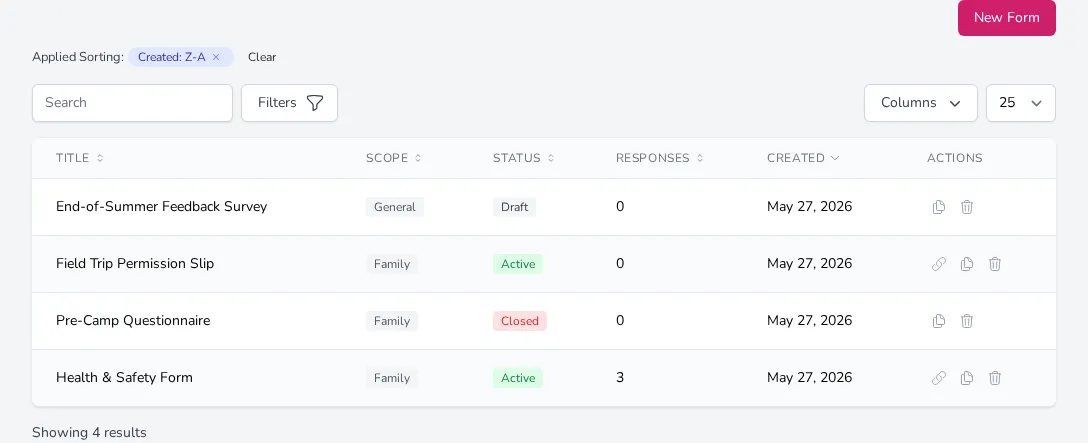
What You Can Do with Forms
Section titled “What You Can Do with Forms”- Collect any information — text answers, file uploads, signatures, dropdown selections, and more
- Link fields to your existing data — connect form fields to family and camper records so responses automatically update what’s already in your system
- Control who sees the form — share a public link anyone can access, or send personalized links to specific families through a broadcast
- Get notified — receive an email or text every time someone submits
- Review and export responses — see all submissions in one place, open individual responses, or export everything to a spreadsheet
How Forms Are Organized
Section titled “How Forms Are Organized”Every form belongs to the season you’re currently viewing. When you switch seasons using the dropdown at the top of the page, you’ll see that season’s forms.
Each form has a scope that determines how it relates to families:
- General — not tied to any family. Good for anonymous surveys or general feedback
- Family — linked to a specific family. If the form includes per-camper fields, those fields repeat for each enrolled camper in the family
Each form also has a status:
- Draft — you’re still building it. No one can fill it out yet
- Active — the form is live and accepting responses
- Closed — the form is no longer accepting responses, but you can still view past submissions
Creating a New Form
Section titled “Creating a New Form”- Go to the Forms page from the sidebar.
- Click New Form in the top right.
- You’ll be taken to the form builder, where you can configure settings, add fields, and share the form when it’s ready.
Managing Your Forms
Section titled “Managing Your Forms”From the Forms page, you can:
- Search for a form by title using the search bar
- Filter by status (Draft, Active, Closed) or scope (General, Family) using the Filters button
- Copy the link to an active public form by clicking the link icon in the actions column
- Duplicate a form to create a copy as a new draft — helpful when you need a similar form for a different purpose
- Delete a form by clicking the trash icon. This permanently removes the form and all its submissions
Click any row in the table to open that form in the builder.