
Grade Rosters
The Grades page gives you a bird’s-eye view of your enrollment organized by grade. You can see how many campers are in each grade, their approval status breakdown, bunk assignment progress, and term distribution. It’s the best place to check whether you’re on track before the summer starts.
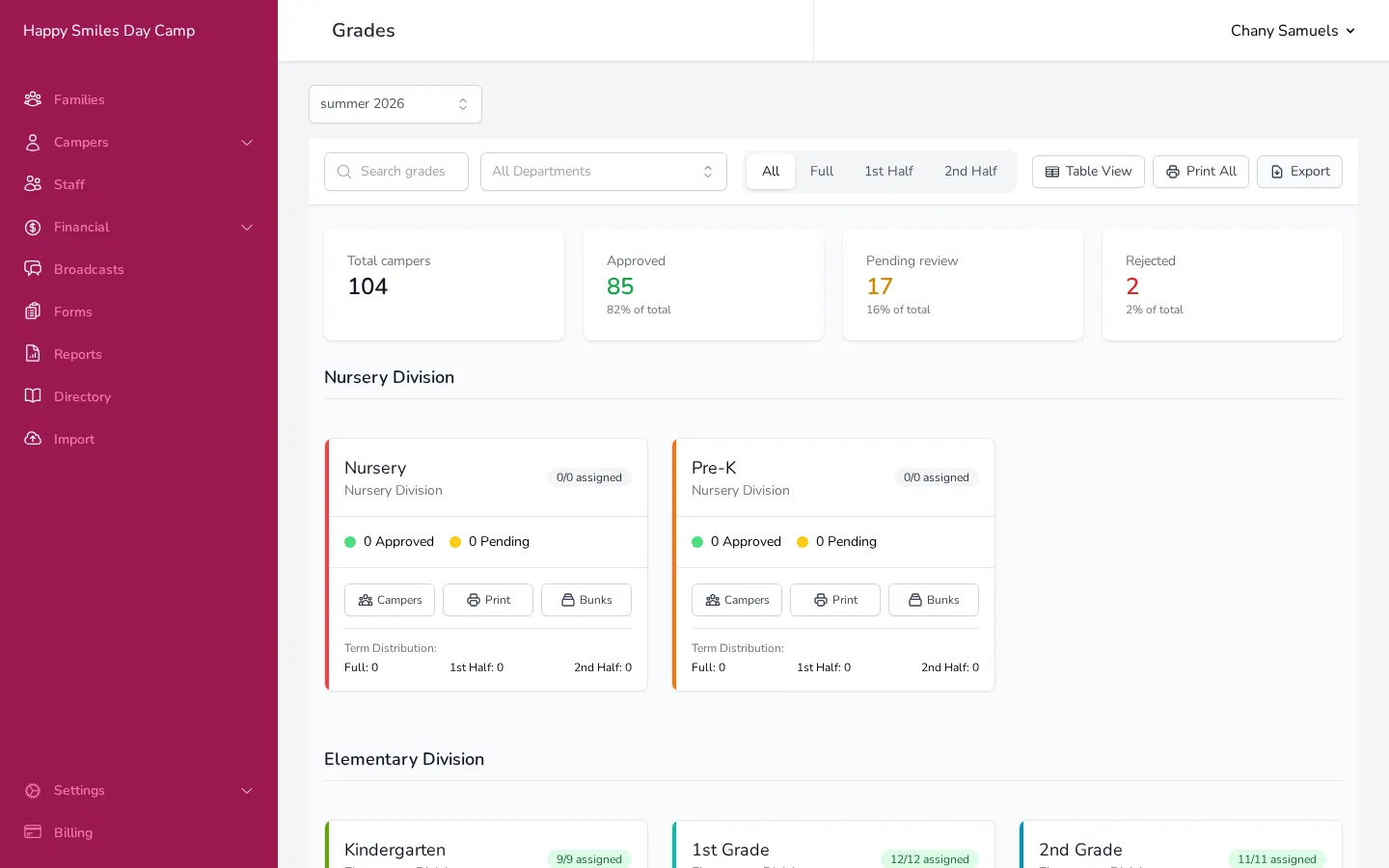
Summary Tiles
Section titled “Summary Tiles”At the top of the page, you’ll see summary tiles showing your overall numbers:
- Total campers — the total number of enrolled campers across all grades
- Approved — how many have been approved, with a percentage of the total
- Pending review — campers still waiting for an approval decision
- Rejected — this tile only appears if any campers have been rejected
These numbers update automatically as you apply filters. For example, switching to the 1st Half term tab will show only the totals for first-half campers.
Grade Cards
Section titled “Grade Cards”Below the summary tiles, grades are displayed as cards grouped by department. Each card shows:
- Grade name and the department it belongs to
- Bunk assignment badge — shows how many campers are assigned to bunks out of the total (e.g., “9/12 assigned”). The badge color indicates progress: green means fully assigned, yellow means partially, and red means none are assigned yet.
- Approval breakdown — a row of colored dots showing how many campers are approved (green), pending (yellow), or rejected (red).
- Term distribution (when the All term tab is selected) — shows how campers are split between full season, first half, second half, and any other terms your camp uses.
Quick Actions on Each Card
Section titled “Quick Actions on Each Card”Every grade card has three buttons:
- Campers — opens a slide-out panel listing every camper in that grade, with their name, family, approval status, and bunk assignment.
- Print — opens the Print & Export panel for that grade, where you can choose a format (contact list, labels, admission cards, or Excel), select fields, and generate the output.
- Bunks — opens a slide-out panel showing which bunks contain campers from this grade, along with counselor assignments and camper counts.
Table View
Section titled “Table View”If you prefer a more compact layout, click Table View in the top right. This switches from cards to a table format with sortable columns:
- Grade — the grade name and level
- Total Campers — the enrollment count
- Bunk Assignment — a progress bar showing the percentage of campers assigned to bunks
- Status — compact badges showing approved, pending, and rejected counts
- Actions — the same Campers, Print, and Bunks actions available in card view
Click any column header to sort by that column. Click it again to reverse the sort direction.
You can switch back to card view at any time by clicking Card View.
Filtering and Searching
Section titled “Filtering and Searching”The controls at the top of the page let you narrow down what you see:
- Search — type a grade or department name to find it quickly.
- Departments — pick one or more departments to show only their grades. This is helpful when you want to focus on a specific division.
- Term tabs — switch between All, Full, 1st Half, and 2nd Half to filter the numbers to a specific term. The summary tiles and grade cards both update to reflect the selected term.
Who’s Here on a Date
Section titled “Who’s Here on a Date”Alongside the term tabs, a By date control lets you see who is expected to be at camp on a specific day rather than for a whole term. This is handy for planning a particular date — a trip day, a visiting day, or the start of a half.
- Click By date and pick a day in the Who’s here on… date picker. You can only choose dates within your season.
- Click Today to jump straight to the current day (available while the season is running).
- To go back to term totals, clear the date using the ✕ next to it.
When a date is set, the summary tiles and grade cards show only the campers scheduled to be there that day — full-season campers, the campers in the matching half, and any custom-date campers whose dates cover that day.
The By date view and the term tabs are mutually exclusive: picking a date clears the selected term, and clearing the date returns you to the All term.
A banner reminds you what you’re looking at: this reflects who is expected to attend on that day based on their enrollment — it is not a check-in or attendance record.
Printing and Exporting
Section titled “Printing and Exporting”- Print All — click the Print All button to open the Print & Export panel for all grades at once. The output respects your current filters, so you can print a single department by filtering first.
- Export — click the Export button to download a spreadsheet (Excel file) with all grade data. This includes camper counts, approval breakdowns, and assignment statistics.
Good to Know
Section titled “Good to Know”- The Grades page uses the same departments and grades you set up in Settings. If a grade is missing, check your season’s department configuration.
- Bunk assignment progress on this page is a quick way to check whether you still need to assign campers to bunks. A grade showing “0/15 assigned” means none of those 15 campers have been placed in a bunk yet.
- The Bunks slide-out panel shows warnings when something looks unusual — for example, when campers from a grade are in a bunk that isn’t officially assigned to that grade.