
Sharing Forms
Once you’ve built your form and configured its settings, you need to share it so families can fill it out. The Share tab handles activation, sharing, and closing.
Activating Your Form
Section titled “Activating Your Form”A new form starts in Draft status. No one can fill it out until you activate it.
- Open your form and click the Share tab.
- Click Activate Form.
- If your form is still named “Untitled Form,” you’ll be prompted to review your settings first. Otherwise, the form activates immediately.
Before activation, we check that your form has at least one input field. If you’re using the auto-create families feature, we also make sure the required linked fields are in place (at minimum, a Family “Last Name” field marked as required).
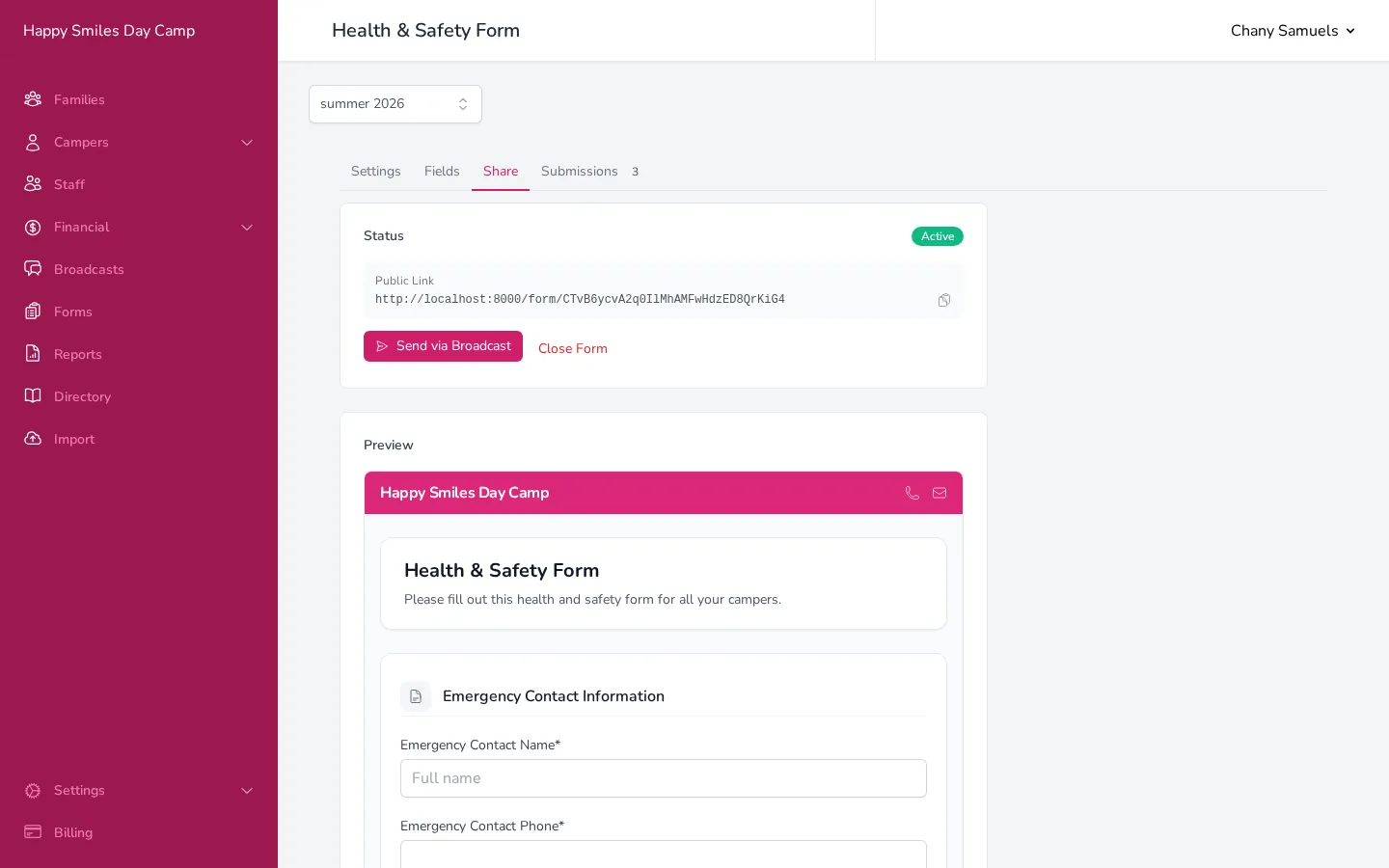
Sharing Options
Section titled “Sharing Options”Once your form is active, there are three ways to get it to families.
Public Link
Section titled “Public Link”If your form is set to Public in the Settings tab, a shareable link appears on the Share tab. Anyone with this link can open and fill out the form — they don’t need to be in your system.
Click the clipboard icon next to the link to copy it. You can then paste it into an email, text message, your website, social media, or anywhere else.
Send via Broadcast
Section titled “Send via Broadcast”Click Send via Broadcast to create a new broadcast with your form attached. This sends each family a personalized link that pre-identifies who they are — so when they open the form, their family name is already associated with the submission, and any linked fields can be pre-filled with their existing data.
When you click this button, a new broadcast draft is created with a template that includes the form link. You can customize the email subject, content, and recipients before sending.
Personalized Family Links
Section titled “Personalized Family Links”When you send a form through a broadcast, each family receives their own unique, signed link. This link:
- Identifies the family so the submission is connected to their record
- Pre-fills linked fields with the family’s existing information
- Prevents one family from submitting as another (the link is secured with a signature)
If your form is not public (the Public form toggle is turned off in Settings), personalized links through broadcasts are the only way families can access the form.
Previewing Your Form
Section titled “Previewing Your Form”The Share tab shows a live preview of how the form looks to someone filling it out. As you make changes to fields or settings, the preview updates automatically.
The preview is embedded right in the Share tab, so you don’t need to visit a separate page.
Closing a Form
Section titled “Closing a Form”When you’re done collecting responses:
- Go to the Share tab.
- Click Close Form.
- Confirm the action.
A closed form no longer accepts responses. Families who visit the link will see a message that the form is no longer available. You can still view all past submissions on the Submissions tab.
Reopening a Form
Section titled “Reopening a Form”If you closed a form and need to collect more responses:
- Go to the Share tab.
- Click Reopen as Draft.
The form returns to Draft status. Make any changes you need, then activate it again.
Good to Know
Section titled “Good to Know”- You can also copy the link to an active public form directly from the Forms page by clicking the link icon in the actions column — no need to open the form builder.
- The availability window in Settings can automatically close a form on a specific date, so you don’t have to remember to close it manually.
- Closing a form does not delete any submissions. All responses are preserved and accessible from the Submissions tab.