
Communication Overview
Broadcasts let you send messages to parents and staff by email, SMS, or voice call — all from one place. Whether you’re announcing a schedule change, sending payment reminders, or sharing important updates, broadcasts make it easy to reach the right people quickly.
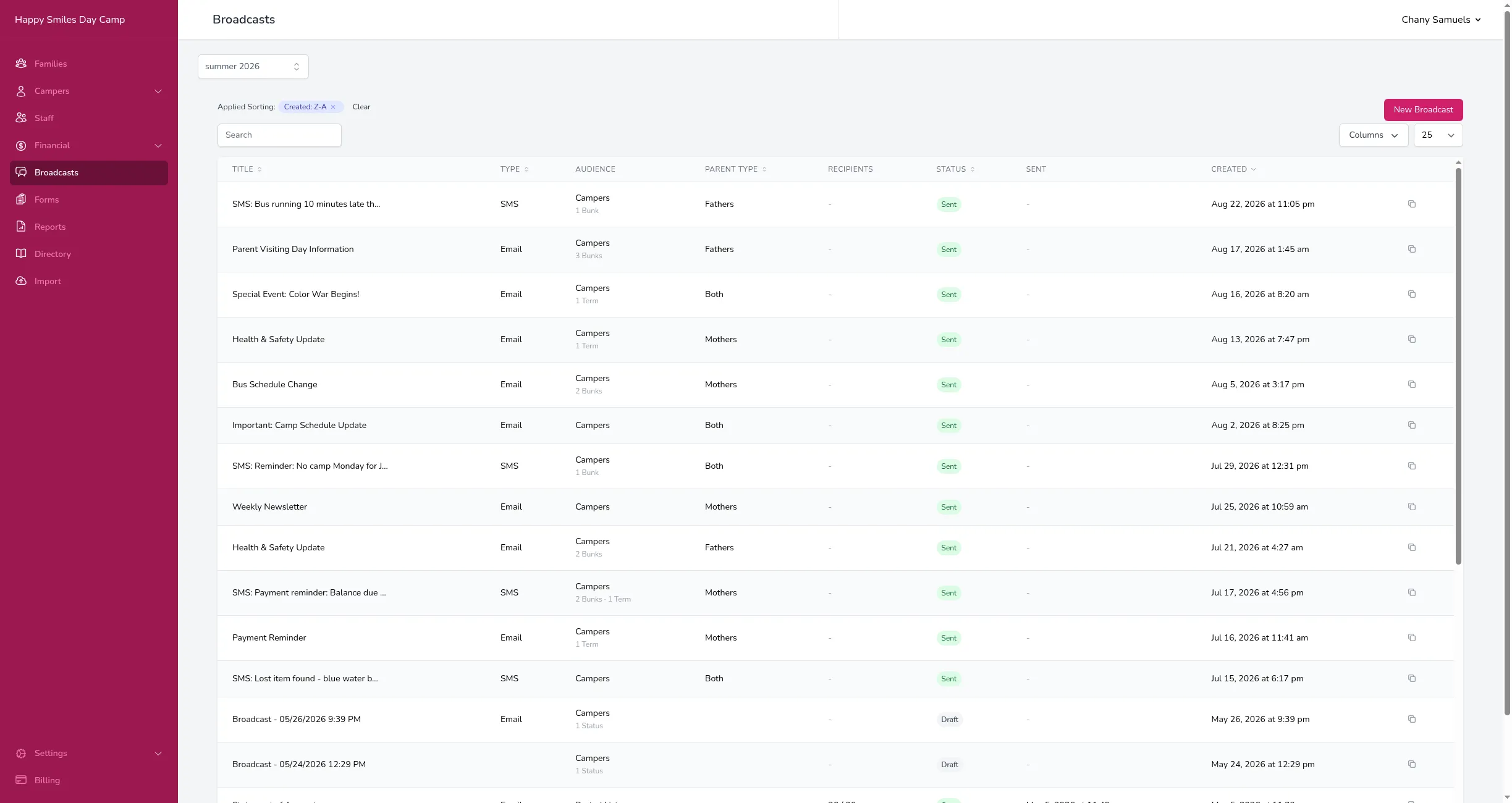
What You Can Do
Section titled “What You Can Do”- Email broadcasts — Send formatted emails with attachments, images, and personalized details like family names and balances. See Email Broadcasts.
- SMS broadcasts — Send text messages directly to parents’ phones. See SMS Broadcasts.
- Voice broadcasts — Place automated phone calls with a recorded message or text-to-speech. See Voice Broadcasts.
- Incoming messages — When parents reply to your text messages, Campflow forwards their replies to your email and logs them on the family record. See Receiving Incoming Messages.
Getting to Broadcasts
Section titled “Getting to Broadcasts”- Click Broadcasts in the sidebar.
- You’ll see a list of all your broadcasts — both drafts and sent messages.
- Click New Broadcast in the top right to create a new one.
How Broadcasts Work
Section titled “How Broadcasts Work”Every broadcast follows the same basic flow:
- Choose a type — Email, SMS, or Voice Call.
- Choose your recipients — Send to all campers in the season, filter by grade, bunk, term, or approval status, or paste in a list of addresses or phone numbers. See Choosing Recipients.
- Write your message — Compose your content and personalize it with merge tags like family names and balances.
- Send or schedule — Send immediately or schedule it for a future date and time.
After sending, you can open any broadcast to see delivery status for every recipient — who received it, who opened it, and if anything bounced or failed.
Receiving Incoming Messages
Section titled “Receiving Incoming Messages”Broadcasts are not one-way. When parents receive your text messages, they can reply — and Campflow makes sure you see it. Incoming text messages are forwarded to your camp’s email and logged in the family’s record so you can see what they said and respond. See Receiving Incoming Messages for the full details.
Good to Know
Section titled “Good to Know”- SMS and voice broadcasts require a one-time setup before you can use them. See Setting Up SMS & Voice.
- Each broadcast type has its own costs. See Broadcast Costs for pricing details.
- You can also start a broadcast from the Families or Campers page — select the families or campers you want using the checkboxes, then choose Send Message from the Bulk Actions menu.
- One-off messages sent to individual families (such as a single statement or a quick text from a family page) are tagged as direct messages. Use the Direct Messages filter on the broadcast list to hide them and focus on your real broadcasts.
- To delete a draft broadcast, click the trash icon next to it in the broadcast list. Only drafts can be deleted — sent broadcasts are kept for your records.