
Refunds & Chargebacks
Sometimes money needs to go back to a family. Campflow tracks all of these as reversals against the original payment, so your financial records stay accurate. There are four types:
- Refunds — You return money to a family through the payment processor. The money goes back to their card or bank account automatically.
- Manual Refunds — You already returned money outside of Campflow (check, Zelle, etc.) and need to record it so the balance updates.
- Chargebacks — A parent disputed a charge with their bank, and the bank reversed the payment.
- Returns — An ACH payment or check bounced.
Refunds
Section titled “Refunds”A refund is when you return money to a family. Only payments made through the online payment processor (credit card or ACH) can be refunded directly through Campflow — the money goes back to the family’s card or bank account automatically.
How to Issue a Refund
Section titled “How to Issue a Refund”- Go to the family’s detail page.
- Find the original payment in the Payments section.
- Click the action menu (⋮) on the payment row and select Refund.
- Choose Full Refund or Partial Refund.
- For partial refunds, enter the amount you want to return.
- Optionally add a note explaining the reason.
- Choose whether to send a refund receipt to the family.
- Click Process Refund.
Full vs. Partial Refunds
Section titled “Full vs. Partial Refunds”- Full refund — Returns the entire payment amount. If the payment has not yet settled with the payment processor, Campflow will void the transaction instead of refunding it (the result is the same for the family, but voids are faster).
- Partial refund — Returns part of the payment. You can issue multiple partial refunds against the same payment, as long as the total does not exceed the original amount.
Refund Fee Handling
Section titled “Refund Fee Handling”When you refund a payment, the processing fees from the original transaction are not refunded by the payment processor. Campflow gives you the option to either absorb the fee (so the parent gets the full refund amount) or pass it on (so the refund amount is reduced by the fee).
When refunding a payment that included processing fees, you have two options:
- Effective refund (default) — Refund only the base payment amount. The family gets back what they owed, but not the processing fee. This is the most common choice since the processing fee has already been paid to the processor.
- Full refund — Refund the full amount the family was charged, including the processing fee.
There is also a flat $0.30 transaction fee on the refund itself. You can choose to deduct this from the refund amount.
What Happens After a Refund
Section titled “What Happens After a Refund”- The family’s balance increases by the refunded amount (since money was returned to them).
- The original payment shows a “Refunded” or “Partially Refunded” label.
- A separate refund record appears in the payment table.
- If you chose to send a receipt, the family gets an email confirming the refund.
Manual Refunds
Section titled “Manual Refunds”If you refunded a family outside of Campflow — for example, you wrote them a check, sent a Zelle, processed a refund directly through your payment processor (Cardknox / Sola), or sent money through a different system — you can record it as a manual refund so the family’s balance reflects the returned money. No money is moved through the payment processor; this is a record-only entry.
How to Record a Manual Refund
Section titled “How to Record a Manual Refund”- Go to the family’s detail page.
- Find the original payment in the Payments section.
- Click the action menu (⋮) on the payment row and select Record Refund / Chargeback.
- Refund is already selected by default — leave it as is.
- Under How was the money returned?, select the payment method you used to send the money back — for example, Check or Zelle. If you processed the refund directly in your payment processor, select that payment method.
- Choose Full Amount to record the remaining balance of that payment, or Custom Amount to enter any amount.
- For custom amounts, enter the amount you want to record.
- Optionally enter a check number or reference number (for example, a check number or Zelle confirmation).
- Optionally add a note explaining the reason.
- Click Record Refund.
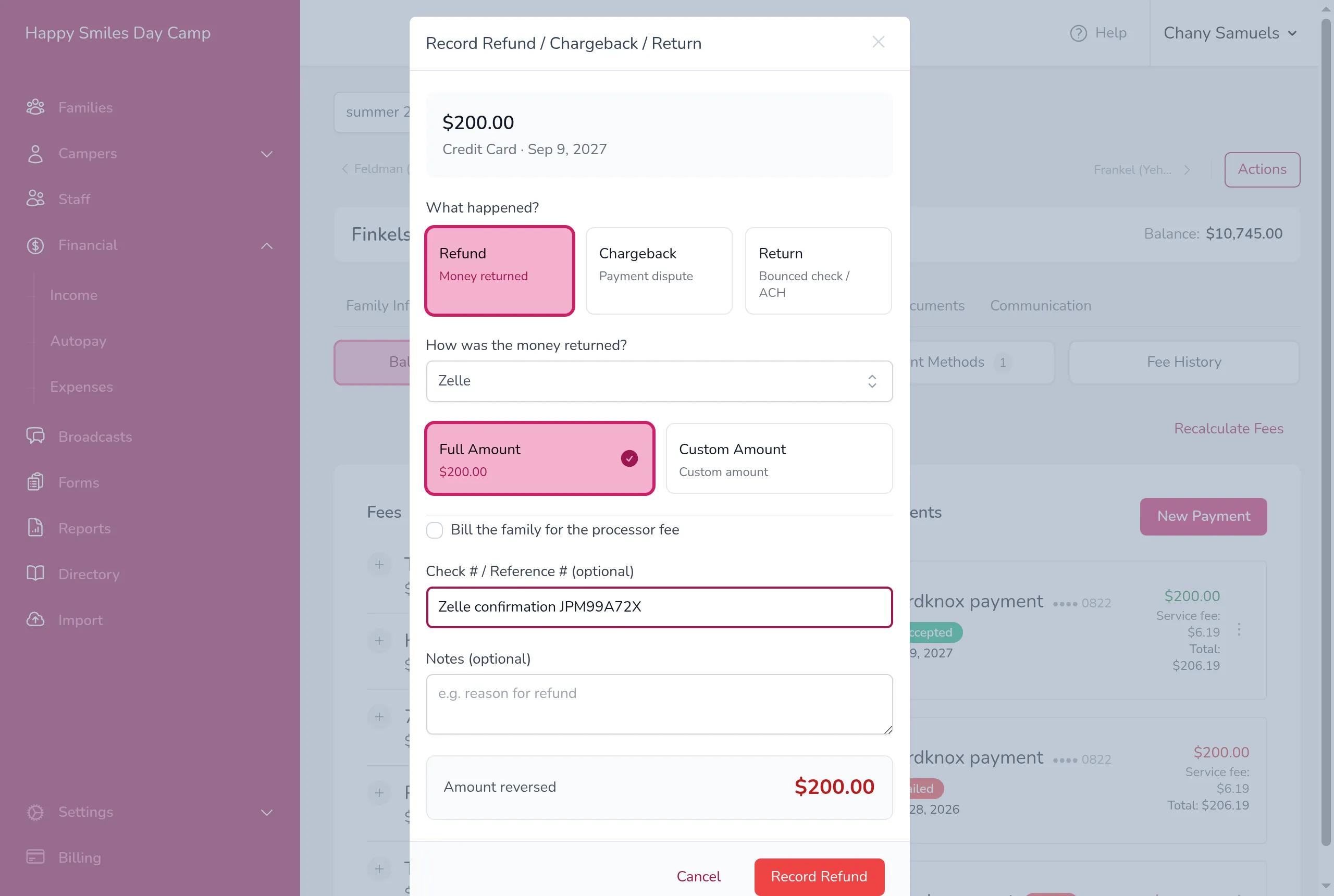
The refund amount does not have to match the original payment — you can enter any amount, even more than the payment it is recorded against. Campflow will show a note confirming this is allowed. This is useful when you refund a family an amount that spans what was collected across multiple payments (for example, three $500 payments that you are refunding as a single $1,500 return).
Chargebacks
Section titled “Chargebacks”A chargeback — sometimes called a dispute — is when a parent contacts their credit card company or bank and asks them to reverse a charge. The bank pulls the money back from your account, and you need to record this in Campflow so the family’s balance reflects the reversal.
Responding to a Chargeback
Section titled “Responding to a Chargeback”When you receive a chargeback, the bank immediately pulls the money back from your account — this happens whether the dispute is legitimate or not. You can choose to accept the chargeback or dispute it with evidence that the charge was legitimate. This is handled outside of Campflow, through your payment processor. If you use Sola as your processor, you can manage and respond to disputes directly from the Sola chargeback management portal.
Regardless of how the dispute is resolved, you should record the chargeback in Campflow right away so the family’s balance stays accurate.
If You Win the Dispute
Section titled “If You Win the Dispute”If you successfully dispute the chargeback and the bank returns the money to your account, do not delete the chargeback record — that money did leave your account, and the chargeback is part of the payment history. Instead, record a new payment on the family’s account for the amount that came back in. This keeps the ledger accurate: the chargeback shows the money going out, and the new payment shows it coming back.
How to Record a Chargeback
Section titled “How to Record a Chargeback”- Go to the family’s detail page.
- Find the original payment in the Payments section.
- Click the action menu (⋮) on the payment row and select Record Refund / Chargeback.
- Choose Chargeback as the type.
- Choose Full Amount or Custom Amount.
- For custom amounts, enter the amount.
- Optionally add a note and a case / reference number (the chargeback case number from your processor).
- If you want to charge the family a fee for the chargeback, check Bill the family for the processor fee and enter the fee amount. This adds a new charge to the family’s invoice.
- Click Record Chargeback.
Returns (Bounced Payments)
Section titled “Returns (Bounced Payments)”A return is when an ACH payment or check bounces — the bank reverses the transfer because of insufficient funds or a closed account. Like chargebacks, you record these so the balance updates correctly.
How to Record a Return
Section titled “How to Record a Return”- Go to the family’s detail page.
- Find the original payment in the Payments section.
- Click the action menu (⋮) on the payment row and select Record Refund / Chargeback.
- Choose Return as the type.
- Choose Full Amount or Custom Amount.
- For custom amounts, enter the amount.
- Optionally add a note, a reference number, and a fee to charge the family.
- Click Record Return.
Editing and Deleting Reversals
Section titled “Editing and Deleting Reversals”You can edit chargebacks and returns after recording them — click the action menu (⋮) on the reversal and select Edit to change the amount, note, or reference number. Reversals that were entered manually (not processed through the payment processor) can also be deleted from the same menu.
Online refunds processed through Campflow cannot be edited or deleted since the money has already been returned.
Good to Know
Section titled “Good to Know”- Refunds through the payment processor are only available for credit card and ACH payments. For other payment methods (cash, check, Zelle), use the manual refund option to record that money was returned.
- A payment can have multiple reversals — for example, a partial refund followed by a chargeback.
- The original payment always stays on record. Reversals are separate entries that reference the original payment, so you have a complete history.
- When Autopay is active, refunding a payment causes the Autopay schedule to recalculate since the balance has changed.