
The Family Table
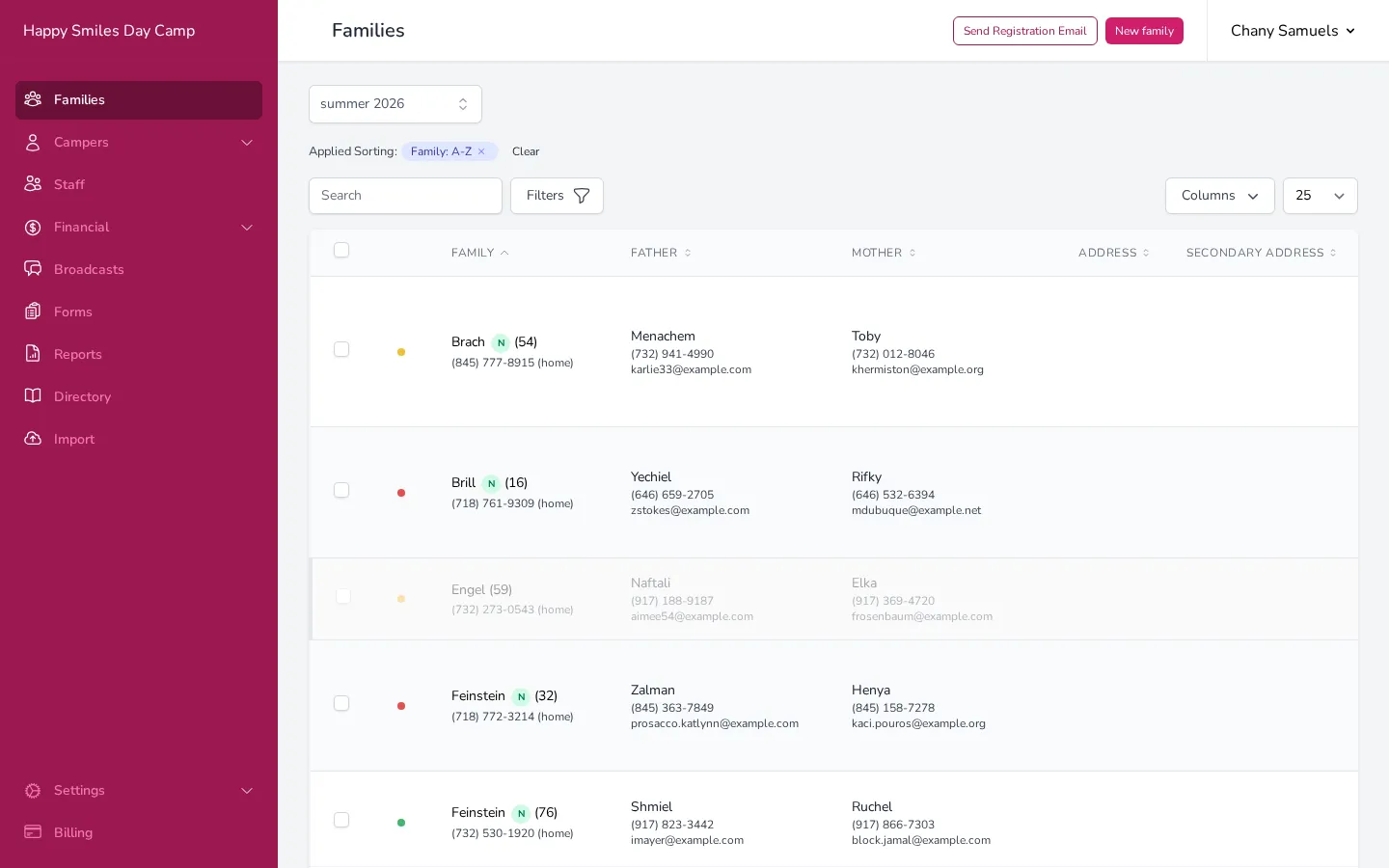
The family table is the main list of every family in your camp. It shows parent names, contact details, addresses, camper enrollments, financial status, and more — all in one place. You can search, filter, sort, and take actions on families right from this table.
Searching
Section titled “Searching”Type into the search bar at the top of the table to find families quickly. The search looks across family last names, parent names, phone numbers, email addresses, and addresses. You can search by any of these — for example, type a phone number, an email address, or a city name.
Columns
Section titled “Columns”The table shows the following columns. You can show or hide columns by clicking the Columns button above the table. To rearrange columns, drag them into your preferred order using the grip handle next to each column name in the dropdown. You can also resize any column by dragging its right edge in the table header.
- Family — The family last name, home phone, and a badge showing whether the family is Returning (R) or New (N) for the current season. Families with no campers enrolled this season appear grayed out.
- Father — Father’s name, phone, and email.
- Mother — Mother’s name, phone, and email.
- Address — Street address, city, state, and zip.
- Secondary Address — If your camp uses secondary addresses (common for families with summer and winter homes).
- Colony — The colony or community the family belongs to, plus their unit number if applicable.
- Campers — Each camper enrolled for the current season, shown as a small card with their name and grade. The card’s color and shading indicate the camper’s grade color and enrollment term.
- Documents — How many documents the family has uploaded. Hover to see the list of document names.
- Disclosures — Whether the family has completed your registration disclosures (checkboxes). Shows a count like “2 of 3” with a green checkmark when all are complete, or an amber warning when some are missing.
- Applied — The date the family submitted their registration.
- Status — The family’s payment status: Paid up, Pending (has a balance, but pending payments will cover it), Partially paid, Unpaid, or Not registered.
- Balance — A breakdown of charges, payments, pending payments, and the total balance. A green balance means paid in full or credit; red means there’s a balance due.
- Last Contact — The most recent collection activity for this family (statement sent, note added, payment received).
- Payment Methods — How many saved payment methods the family has on file.
- Autopay — Whether the family has active or paused Autopay schedules.
- Notes — Any notes saved on the family record.
- Custom Fields — If your camp has custom fields for families, they appear as additional columns.
Sorting
Section titled “Sorting”Click any column header to sort the table by that column. Click again to reverse the sort order. The table remembers your sort preference between visits.
Filtering
Section titled “Filtering”Click the Filters button above the table to open the filter panel. You can filter by:
- Registration Status — Show only families that are registered for this season, or only those that are not.
- Family Type — Show only returning families or only new families.
- Documents — Show families with or without uploaded documents.
- Missing Documents — Show families that have not submitted specific registration documents. Select one or more documents to see every family missing any of them. For per-camper documents, a family appears if at least one of its enrolled campers is missing the document. (This filter appears only when your season has documents that parents need to submit.)
- Balance — Show families with an outstanding balance, a credit, or no balance. Select one or more of: Has a balance due shows all families who owe money right now. Has a balance after expected payments filters out families whose expected payments will cover what they owe, so you only see families that still need attention. Balance covered by expected payments shows the opposite — families who have a balance, but their expected payments will take care of it. Has a credit shows families who have paid more than they owe, and No balance shows families who are paid up. “Expected payments” here means both pending payments and upcoming Autopay charges.
- Payment Methods — Show families with or without saved payment methods.
- Autopay — Show families with active Autopay, paused Autopay, or no Autopay at all.
- Approval Status — Filter by whether all, some, or none of a family’s campers are approved.
- City, State, Secondary City, Secondary State — Filter by location.
- Marital Status — Filter by married, divorced, widowed, separated, or single.
- Camper Term — Show families whose campers are enrolled for a specific term (full season, first half, second half, or custom dates).
- Colony and Unit Number — If your camp uses colonies.
- Disclosures — Filter by whether specific registration disclosures are checked, unchecked, or not applicable.
- Custom Fields — If your camp has custom family fields, each one that has data becomes a filter option.
Filters stay active as you navigate away and come back. To clear all filters, click Clear in the filter panel.
Bulk Actions
Section titled “Bulk Actions”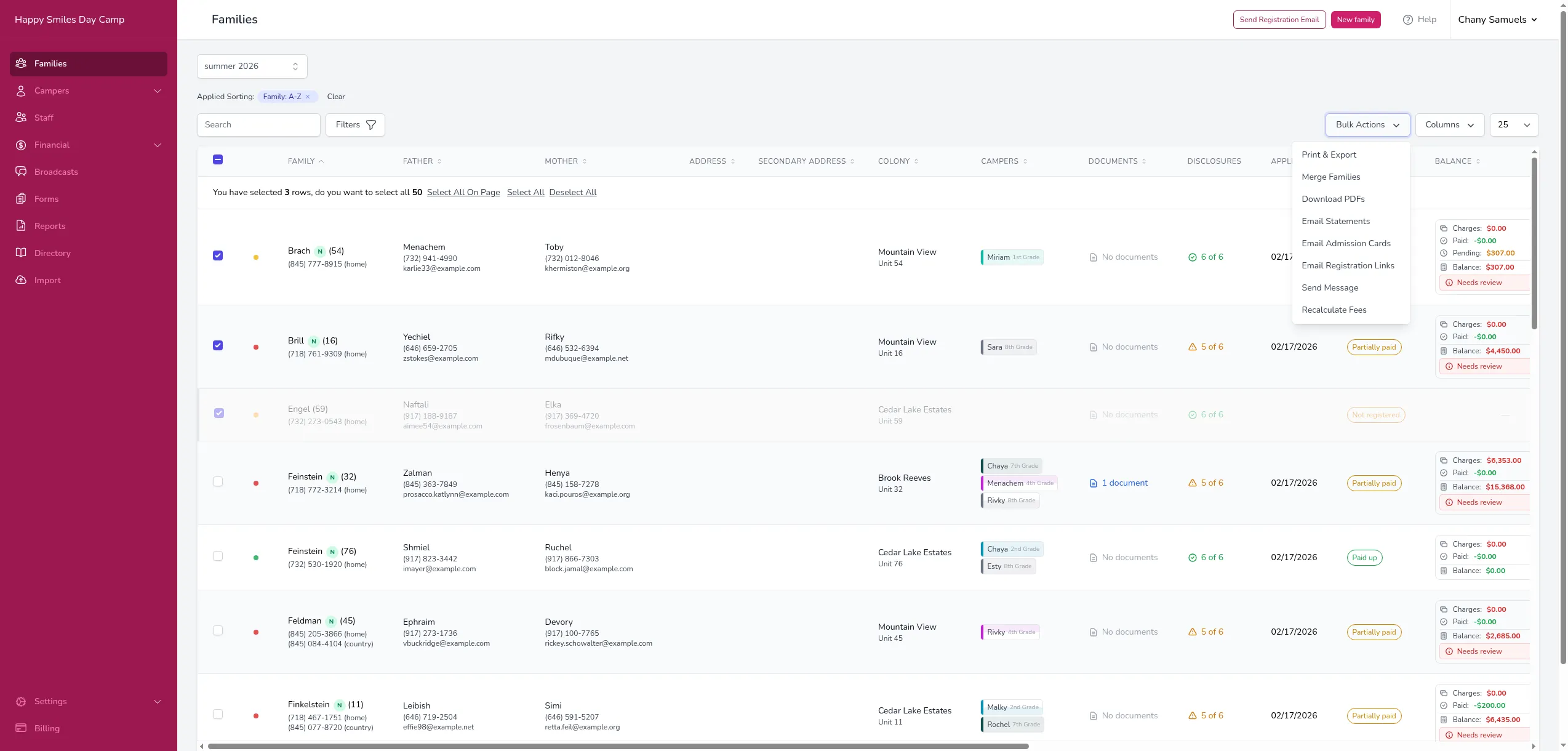
Select families using the checkboxes on the left side of the table. To select all families in your current view, click the Select All checkbox in the table header. If you have filters applied, only the filtered families are selected — this is a quick way to print or export a specific subset (for example, all families with an outstanding balance or from a specific city). Once selected, choose an action from the bulk actions menu:
- Print & Export — Opens the Print & Export panel for the selected families, where you can choose a format (contact list, labels, or Excel), pick the fields to include, and generate the output.
- Merge Families — Merge two or more selected families into one (see Duplicate Detection & Merging).
- Download PDFs — Download a PDF of each selected family’s registration form.
- Email Statements — Send account statements to the selected families by email.
- Admission Cards — Opens the Print & Export panel pre-set to admission cards for the selected families. From there you can print or email them to parents.
- Email Registration Links — Send each selected family a personalized link to your registration form.
- Recalculate Fees — Recalculate tuition charges and fees for the selected families based on current pricing. You’ll be asked whether to Recalculate All (rebuild charges at current pricing, replacing existing ones — manual credits are preserved) or Only Add Missing (add charges only for campers that don’t have any yet, without touching existing charges). Campers must have a grade and term assigned for charges to be calculated.
- Send Message — Create a broadcast pre-loaded with the selected families as recipients.
- Delete Families — Permanently delete the selected families and all related data. See Deleting a Family for details on what is removed and what is preserved.
Deleting a Family
Section titled “Deleting a Family”To delete a single family, click the trash icon in the Actions column on the right side of the row. To delete multiple families at once, select them using the checkboxes and choose Delete Families from the bulk actions menu.
See Deleting a Family for full details on what happens to the data, how financial records are handled, and permission requirements.
Good to Know
Section titled “Good to Know”- The table shows data for the currently selected season. If you don’t see a family you’re looking for, check that you’re viewing the correct season using the season picker at the top of the page.
- When you filter by Has a balance due, the Balance column footer adds up only the families in your filtered view. This total will usually be higher than billed minus received on the Income page, because that figure is a camp-wide net where families with a credit offset families who owe.
- Click any family row to open that family’s detail page where you can edit their information.
- The table remembers your page size, column selections, column order, sort order, and filters between visits so you can pick up right where you left off.
- If Campflow detects possible duplicate families, a banner will appear at the top of the page linking you to the Duplicates page.