
Merge Tags
Merge tags are placeholders you insert into your broadcast message that automatically fill in with each recipient’s specific information — like their family name, camper details, or account balance. This lets you send one broadcast that feels personal to every family.
For example, a message like:
Dear {family_name} family, {camper_names} is registered for {season_name}. Your current balance is {balance}.
…would arrive as:
Dear Cohen family, Jake and Sarah are registered for Summer 2026. Your current balance is $1,250.00.
How to Insert Merge Tags
Section titled “How to Insert Merge Tags”In Email Broadcasts
Section titled “In Email Broadcasts”- Place your cursor in the email editor where you want the tag.
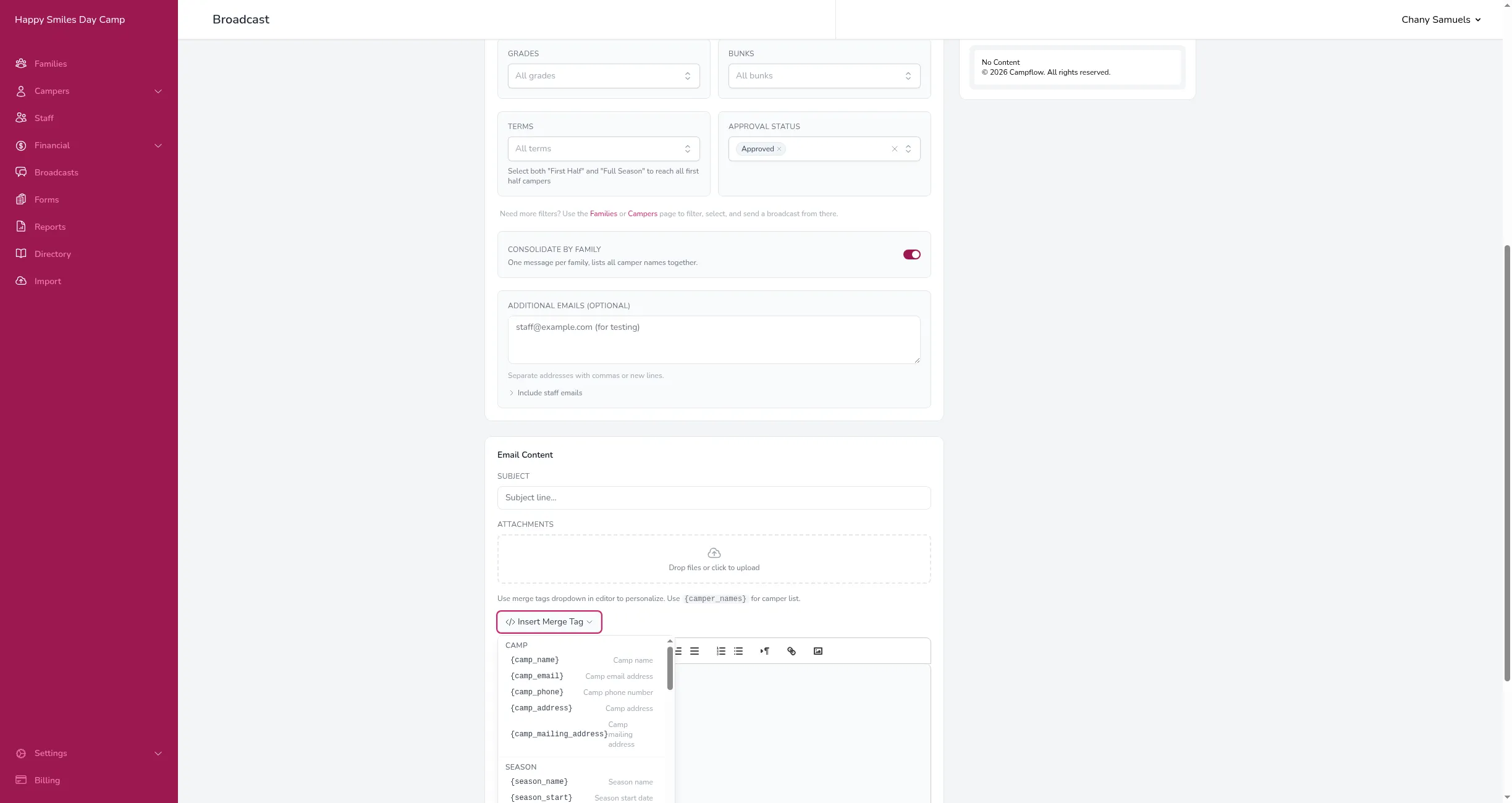
- Click Insert Merge Tag above the editor.
- Choose a tag from the list that appears (organized by category).
- The tag will be inserted at your cursor position.
In SMS Broadcasts
Section titled “In SMS Broadcasts”- Click Insert merge tag above the text area.
- Choose a tag from the list.
- The tag will be added to your message.
Available Merge Tags
Section titled “Available Merge Tags”| Tag | What It Shows |
|---|---|
{camp_name} | Your camp’s name |
{camp_email} | Your camp’s email address |
{camp_phone} | Your camp’s phone number |
{camp_address} | Your camp’s street address |
{camp_mailing_address} | Your camp’s mailing address |
Season
Section titled “Season”| Tag | What It Shows |
|---|---|
{season_name} | The current season name (e.g., “Summer 2026”) |
{season_theme} | The season’s theme, if you’ve set one |
{season_start} | The season start date |
{season_end} | The season end date |
{season_theme} isn’t listed in the Insert Merge Tag picker, but it still works if you type it into your message.
Family
Section titled “Family”| Tag | What It Shows |
|---|---|
{family_name} | The family’s last name |
{father_name} | Father’s full name |
{mother_name} | Mother’s full name |
{father_title} | Father’s title (Mr., Dr., etc.) |
{mother_title} | Mother’s title (Mrs., Dr., etc.) |
{parents_title} | Both parents’ titles combined |
{father_email} | Father’s email address |
{mother_email} | Mother’s email address |
{father_phone} | Father’s phone number |
{mother_phone} | Mother’s phone number |
{family_address} | Street address |
{family_address2} | Address line 2 |
{family_city} | City |
{family_state} | State |
{family_zip} | ZIP code |
{colony_name} | The family’s colony |
Financial
Section titled “Financial”| Tag | What It Shows |
|---|---|
{balance} | The family’s balance for this season |
{balance_total} | The family’s balance across all seasons |
{total_charges} | Total charges for this season |
{total_payments} | Total payments for this season |
{pending_payments} | Pending payments for this season |
Camper
Section titled “Camper”| Tag | What It Shows | Mode |
|---|---|---|
{camper_names} | All campers’ names in a list (e.g., “Jake, Sarah, and Emma”) | Consolidated |
{camper_name} | Individual camper’s full name | Per-camper |
{camper_first_name} | Individual camper’s first name | Per-camper |
{camper_last_name} | Individual camper’s last name | Per-camper |
{camper_nickname} | Individual camper’s nickname | Per-camper |
{camper_hebrew_name} | Individual camper’s Hebrew name | Per-camper |
{camper_birthday} | Individual camper’s birthday | Per-camper |
{camper_age} | Individual camper’s age | Per-camper |
{status_name} | Camper’s approval status | Per-camper |
Enrollment (Per-Camper Only)
Section titled “Enrollment (Per-Camper Only)”| Tag | What It Shows |
|---|---|
{enrollment_term} | The camper’s term (e.g., “Full Season”) |
{enrollment_start} | Enrollment start date |
{enrollment_end} | Enrollment end date |
{grade_name} | The camper’s grade |
{bunk_name} | The camper’s bunk |
{bunk_preferences} | The camper’s bunk preferences |
Pronouns
Section titled “Pronouns”| Tag | What It Shows |
|---|---|
{he_she} | ”he” or “she” based on camper gender |
{him_her} | ”him” or “her” |
{his_her} | ”his” or “her” |
Capitalized versions are also available: {He_She}, {Him_Her}, {His_Her}.
| Tag | What It Shows |
|---|---|
{form_link} | A link to a form (only available when a form is linked to the broadcast) |
{registration_link} | A link to the family’s registration form |
{payment_link} | A link to the family’s payment page |
General
Section titled “General”| Tag | What It Shows |
|---|---|
{current_date} | Today’s date |
{current_year} | The current year |
{current_time} | The current time |
Custom Fields
Section titled “Custom Fields”If your camp uses custom fields on campers, families, or enrollments, each one becomes its own merge tag. They show up in the Insert Merge Tag picker grouped under Camper Custom Fields, Family Custom Fields, and Enrollment Custom Fields, and look like {cf_camper_tshirt_size} — the entity name followed by the field’s key. Insert them the same way as any other tag.
Custom fields on staff are not available as merge tags. Camper and enrollment custom-field tags need an individual camper, so they only appear in per-camper mode (see below). Family custom-field tags work in either mode.
Which Tags Are Available
Section titled “Which Tags Are Available”The merge tags you can use depend on how you are sending the broadcast.
Paste List
Section titled “Paste List”When you send to a Paste List, Campflow only knows the email addresses or phone numbers you pasted — it does not know which families or campers they belong to. Because of this, only Camp, Season, and General tags are available. Family, camper, financial, enrollment, custom field, link, and pronoun tags all require family data and will not appear in the merge tag list.
If you need to use personalized tags, switch the recipient mode to Campers or select specific families or campers from the table using bulk actions.
Consolidated vs. Per-Camper
Section titled “Consolidated vs. Per-Camper”When sending to families (not a paste list), the Consolidate by Family toggle controls which camper-level tags are available:
- Consolidated mode (default) â One message per family. Use
{camper_names}to list all campers. Per-camper tags like{camper_name},{bunk_name}, and{grade_name}— and any camper or enrollment custom-field tags — are not available. - Per-camper mode — One message per camper. All tags are available, and each message fills in with that specific camper’s details.
To switch modes, turn the Consolidate by Family toggle off in the broadcast configuration.
Good to Know
Section titled “Good to Know”- If you also include staff members as additional recipients, they will see the raw tag text (e.g., “{family_name}”) instead of actual values. Campflow will warn you about this before sending.
- To link a form and use
{form_link}, select a form from the Form section on the broadcast edit page before composing your message.