
Saved Reports
Saved reports let you store a report configuration — the format, fields, sort order, grouping, and data source — so you can re-run it anytime without setting it up again. They live on the Reports page and can be organized into categories for easy access.
Saving a Report
Section titled “Saving a Report”- Open Print & Export — select campers or families on the Campers or Families page and click Print & Export in the bulk actions bar, or click Print on the Grades or Bunks page. See Getting There for details.
- Configure the report the way you want it — choose a format, select your fields, set the sort order.
- Click Save Report at the bottom of the panel (or Save as New if you’re editing a previously loaded report).
- Enter a Report Name (e.g., “Emergency Contacts by Bunk” or “Full Mailing List”).
- Optionally add a Description and choose a Category to file it under.
- Click Save.
Your report now appears on the Reports page and in the “Load a saved report” dropdown inside Print & Export.
Snapshot vs. Dynamic Source
Section titled “Snapshot vs. Dynamic Source”When saving a report from a filtered or selected set of campers or families, you’ll see a Source option:
- Dynamic — Each time you run the report, Campflow re-applies the original filters against the current data. New campers or families that match the filters will be included automatically.
- Snapshot — The report is frozen to the exact set of records that were selected or filtered when you saved it. The results won’t change even if new records are added.
Dynamic is usually what you want — it keeps the report up to date. Snapshot is useful when you need a fixed list that shouldn’t change (e.g., a roster for a specific event).
Running a Saved Report
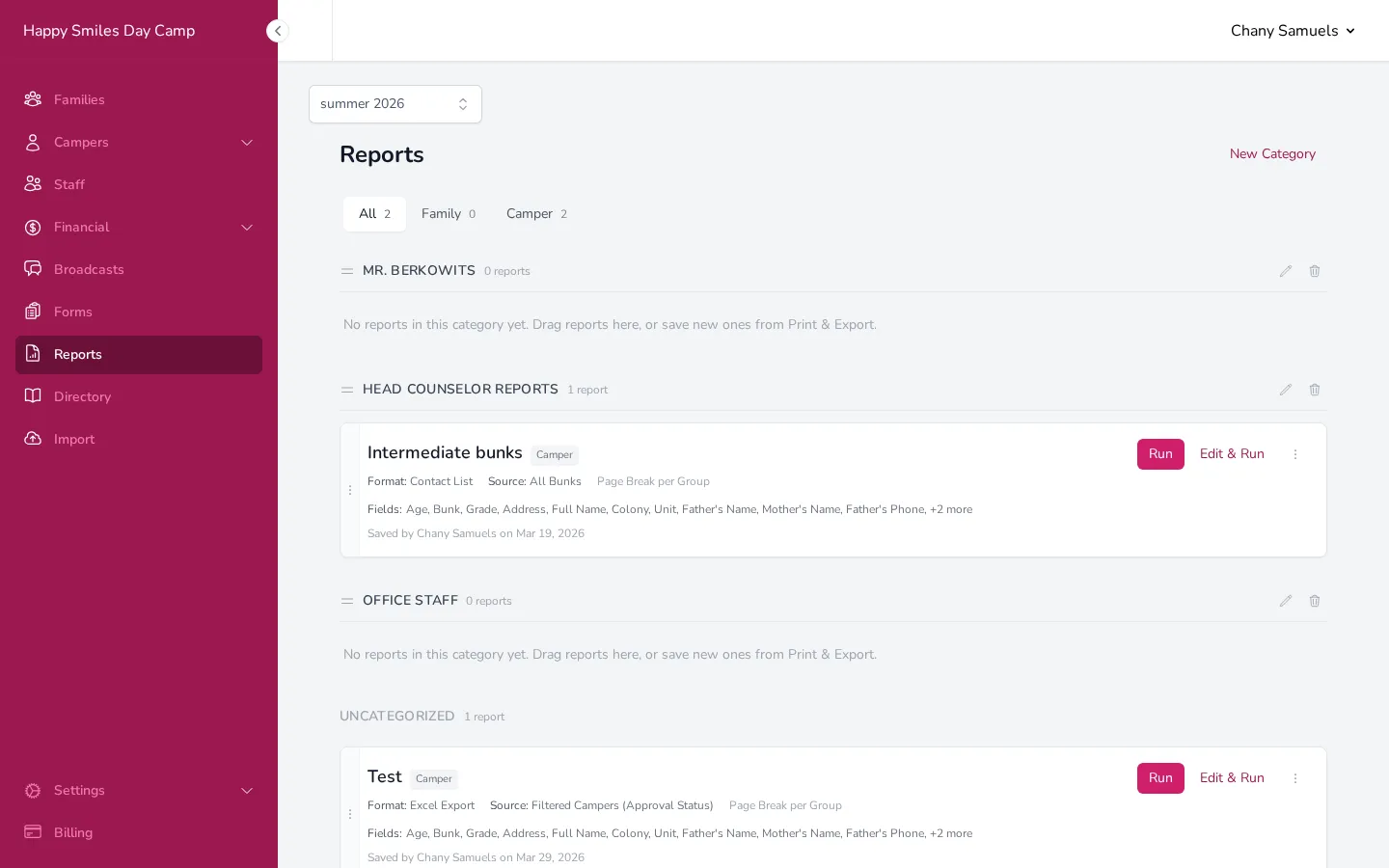
Section titled “Running a Saved Report”Go to the Reports page from the sidebar. You’ll see your saved reports listed, each showing its name, format, data source, and included fields at a glance.
You have two ways to run a saved report:
- Run — Generates the report immediately with the saved settings. For printable formats, a new window opens. For Excel, a file downloads. For document exports, you’ll get a confirmation prompt first.
- Edit & Run — Opens the Print & Export panel pre-filled with the saved settings, so you can tweak anything before generating. This doesn’t change the saved report.
Updating a Saved Report
Section titled “Updating a Saved Report”If you want to change a saved report’s settings:
- On the Reports page, click Edit & Run on the report you want to update.
- Adjust the format, fields, sort order, or any other settings.
- Click Update Report at the bottom of the panel.
- You can change the name, description, and category in the form that appears.
- Click Update to save your changes.
Renaming, Moving, and Deleting Reports
Section titled “Renaming, Moving, and Deleting Reports”On the Reports page, click the three-dot menu on any report to see additional options:
- Rename / Move — Opens an inline form where you can change the report’s name, description, or category. Click Save when you’re done.
- Delete — Permanently removes the saved report. You’ll be asked to confirm first.
Organizing with Categories
Section titled “Organizing with Categories”Categories help you group related reports together. For example, you might create categories like “Head Counselor Reports,” “Office Staff,” or “Financial.”
Creating a Category
Section titled “Creating a Category”- On the Reports page, click New Category in the top right.
- Type a name for the category.
- Click Create.
The category appears as a section on the page. You can drag reports into it, or assign a category when saving or renaming a report.
Editing and Deleting Categories
Section titled “Editing and Deleting Categories”Each category header has a pencil icon to rename it and a trash icon to delete it. When you delete a category, the reports inside it are moved to the Uncategorized section — they’re not deleted.
Reordering
Section titled “Reordering”You can drag and drop both categories and individual reports to reorder them:
- Categories — Grab the drag handle (the horizontal lines icon) on the category header and drag it up or down.
- Reports — Grab the drag handle on the left edge of a report card and drag it within or between categories.
Filtering by Report Type
Section titled “Filtering by Report Type”At the top of the Reports page, you’ll see filter tabs showing All, Family, and Camper with counts next to each. Click a tab to show only reports of that type. This is helpful when you have many saved reports and want to quickly find the right one.
Good to Know
Section titled “Good to Know”- Saved reports are tied to the current season. If you switch seasons, you’ll see the reports saved for that season.
- Any team member can run a saved report. The report shows who originally saved it and when.
- When you run a dynamic report, it always uses the latest data. If a camper was added since the report was saved, they’ll appear in the results.