
Custom Fields
Custom fields let you collect any additional information that Campflow does not include by default. Need to track allergies, transportation needs, or emergency contacts? Create a custom field for it. The data you collect appears on family and camper profiles, can be shown on the registration form, and is included in exports and reports.
Creating a Custom Field
Section titled “Creating a Custom Field”Custom fields are managed on the Registration & Application Settings page.
- Click Settings in the sidebar, then click Registration & Application.
- Scroll down to the Custom Fields section.
- Click Add Custom Field.
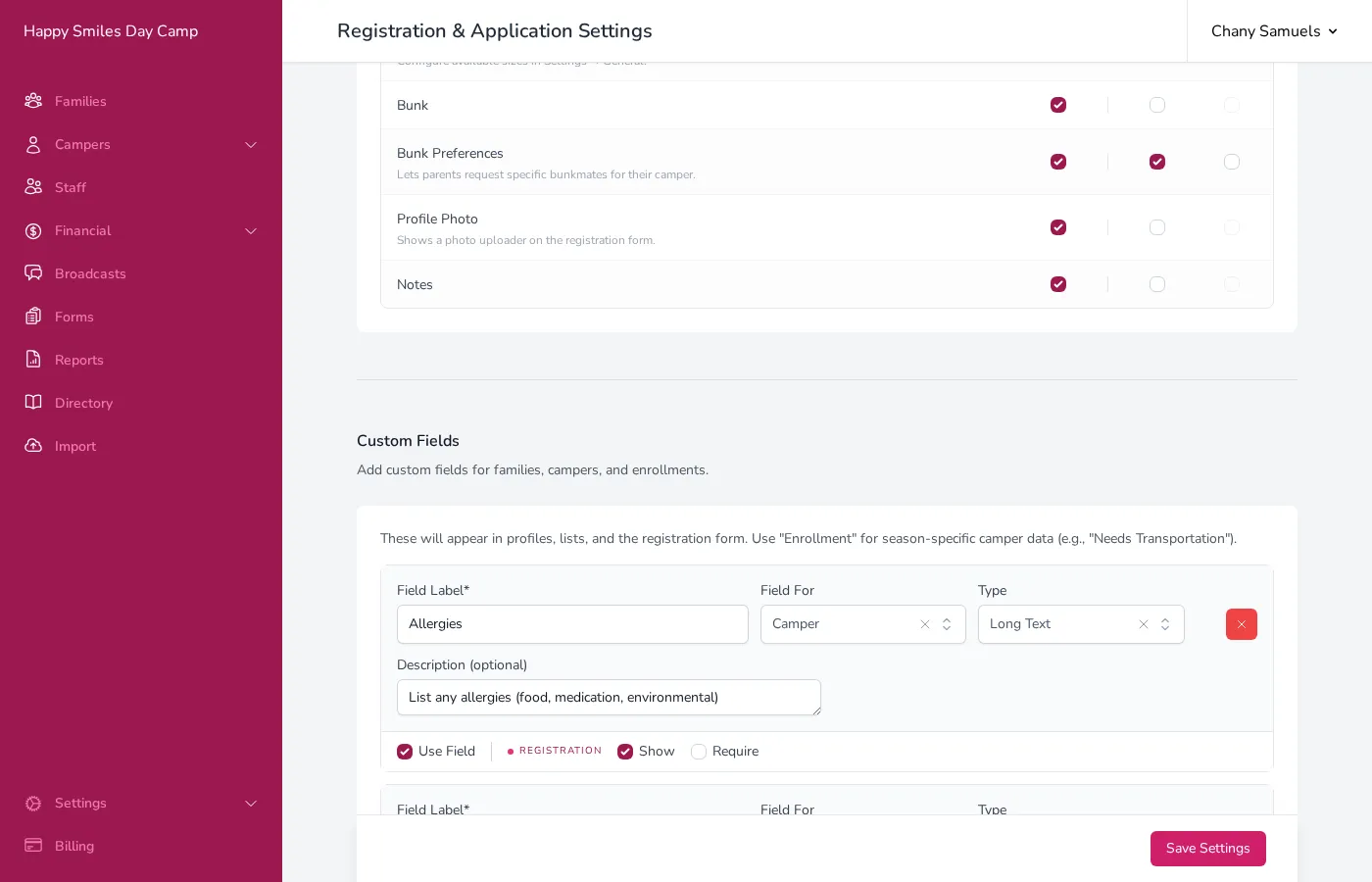
- Enter a Field Label — this is the name that will appear on forms and profiles (e.g., “Allergies” or “Emergency Contact Name”).
- Choose Field For to decide what this field is attached to:
- Family — One value per family (e.g., “How did you hear about us?”).
- Camper — One value per camper, stays the same across seasons (e.g., “Allergies”).
- Enrollment — One value per camper per season, can change each year (e.g., “Needs Transportation”).
- Staff — Attached to staff members.
- Choose a Type for the field (see field types below).
- Optionally add a Description — helper text shown beneath the field to guide users.
- Click Save Settings at the bottom of the page.
Field Types
Section titled “Field Types”| Type | What it looks like | Best for |
|---|---|---|
| Text | A single-line text box | Short answers like names or simple info |
| Long Text | A multi-line text area | Longer answers like allergy details or notes |
| Number | A number-only input | Numeric data like age or quantity |
| Phone | A formatted phone number field | Phone numbers |
| An email input with validation | Email addresses | |
| Checkbox | A single on/off checkbox | Yes/no questions like “Needs Transportation” |
| Single Select - Dropdown | A menu where you pick one option | Choosing from a predefined list |
| Single Select - Radio | Radio buttons where you pick one option | Same as dropdown, but all options visible at once |
| Multi Select - Dropdown | A menu where you pick multiple options | Selecting several items from a list |
| Multi Select - Checkboxes | Checkboxes where you pick multiple options | Same as multi-select dropdown, but all options visible |
For any select-type field, you will need to add the available options. Type each option and press Enter to add it.
Visibility Settings
Section titled “Visibility Settings”Each custom field has toggles that control where it appears:
- Use Field — Turns the field on or off entirely. When off, the field will not appear anywhere.
- Registration: Show — Displays the field on the registration form so parents can fill it in.
- Registration: Require — Makes the field mandatory on the registration form. Parents cannot submit registration without filling it in.
If your camp uses applications, you will also see Application: Show and Application: Require toggles that work the same way for the application form.
These visibility toggles apply to family, camper, and enrollment fields, which can appear on the registration form. Staff fields do not appear on the registration or application form — they only show on the staff add/edit form and in the staff table and export — so the registration and application toggles don’t apply to them.
Changing a Field Type
Section titled “Changing a Field Type”You can change the type of an existing custom field at any time. Campflow will automatically convert your data when possible. The table below shows what happens for each type of change.
| From | To | What happens | Example |
|---|---|---|---|
| Single Select (Dropdown) | Single Select (Radio) | Kept as-is. Same data, different input style. | ”Vegetarian” stays “Vegetarian” |
| Multi Select (Dropdown) | Multi Select (Checkboxes) | Kept as-is. Same data, different input style. | ”Swimming, Arts” stays “Swimming, Arts” |
| Text | Long Text | Kept as-is. The field becomes a larger text area. | ”Peanut allergy” stays “Peanut allergy” |
| Phone, Email, or Number | Text or Long Text | Kept as-is. The value is already text. | ”555-1234” stays “555-1234” |
| Single Select | Multi Select | Converted. Each answer becomes a one-item selection. | ”Bus” becomes a selection of “Bus” |
| Single Select | Text or Long Text | Kept as-is. The chosen option becomes plain text. | ”Bus” stays “Bus” |
| Multi Select | Text or Long Text | Converted. Selections are joined with commas. | ”Swimming, Arts” becomes the text “Swimming, Arts” |
| Multi Select | Single Select | Partially converted. Answers with one selection are kept. Answers with multiple selections cannot be narrowed to one and will be deleted. | ”Bus” is kept. “Bus, Van” is deleted. |
| Text, Long Text, Number, Phone, or Email | Single or Multi Select | Partially converted. Answers that match one of the options (ignoring capitalization and extra spaces) are kept. Answers that do not match any option are deleted. | With options “Bus” and “Van”, “bus” becomes “Bus”. “Walking” is deleted. |
| Any other change | Deleted. The data cannot be converted. | Changing a checkbox to a dropdown deletes all responses. |
When you change a Text, Long Text, Number, Phone, or Email field to a select type, Campflow fills in the options for you from the answers already collected, so every existing answer is kept. This happens when the field has 20 or fewer distinct answers and the Options list is empty. You can edit the suggested options before saving — answers that no longer match an option will be deleted.
When a type change will cause any data loss, Campflow shows a confirmation dialog listing each affected field, how many records will lose data, and a preview of the most common values. You must type DELETE to confirm. This cannot be undone.
Good to Know
Section titled “Good to Know”- Custom fields are shared across all seasons. A camper-level field like “Allergies” carries the same value from year to year. An enrollment-level field like “Needs Transportation” can have a different value each season.
- Custom field data appears in the family and camper profiles, in table columns, and in exports.
- You can reorder fields by changing their position in the list. Fields appear on forms in the order they are listed.
- Deleting a custom field permanently removes all data that was collected for it. Campflow will warn you and tell you how many families or campers would be affected before you confirm.