
Switching Seasons
A season in Campflow represents a camp year — for example, “Summer 2026.” Almost everything in the system is tied to a season: camper enrollments, grades, bunks, payments, broadcasts, and reports. When you switch seasons, the data on every page updates to show that season’s information.
How to Switch Seasons
Section titled “How to Switch Seasons”- Look for the season picker near the top-left of the page, just below the top bar. It shows the name of the season you’re currently viewing (for example, “summer 2026”).
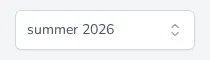
- Click the dropdown.
- Select the season you want to view.
The page will reload with data from the selected season. Every page you visit after that will show data for the same season until you switch again.
The Past Season Warning
Section titled “The Past Season Warning”When you switch to a season that isn’t currently active — whether it’s a past season that has already ended or a future season that hasn’t started yet — a warning banner appears at the top of the screen:

This banner reminds you which season you’re viewing and that any changes you make will apply to that season only. It’s there to prevent accidental edits — for example, you wouldn’t want to record a payment against a past season by mistake.
The warning also appears as a small triangle icon inside the season picker itself, so you can tell at a glance that you’re not on the current season.
What Changes When You Switch
Section titled “What Changes When You Switch”When you select a different season:
- Families page — Shows families that have campers enrolled in that season. Families without enrollments in the selected season will still appear, but their camper info will reflect that season.
- Campers page — Shows campers and their enrollments for that season (grades, bunks, approval statuses, terms).
- Grades & Bunks — Shows the grade structure and bunk assignments for that season.
- Income — Shows payments recorded for that season.
- Autopay — Shows autopay schedules tied to that season.
- Broadcasts — Shows broadcasts sent during that season.
- Reports — Generates reports based on that season’s data.
- Settings — The season-specific settings (dates, pricing, fees) update to show the selected season’s configuration.
What Doesn’t Change
Section titled “What Doesn’t Change”A few things stay the same regardless of which season you pick:
- Family contact info — Parent names, phone numbers, emails, and addresses are shared across all seasons. If you update a mother’s phone number while viewing Summer 2025, it’s updated everywhere.
- Camp-wide settings — Your camp name, logo, email, phone number, colonies, and user accounts are not tied to a season.
- Staff — Staff members are managed across the camp, not per-season.
Good to Know
Section titled “Good to Know”- Campflow automatically selects your current or upcoming season when you log in. You only need to switch manually if you want to look at a past season.
- If something looks wrong or empty, the first thing to check is the season picker. You may be viewing the wrong season.
- You can create a new season for next year at any time without affecting your current season’s data. See Creating a Season for how.