
SMS Broadcasts
SMS broadcasts let you send text messages directly to parents’ phones. They’re great for time-sensitive announcements, quick reminders, and messages you want parents to see right away.
SMS requires a one-time setup before you can use it. See Setting Up SMS & Voice if you haven’t done that yet.
How to Send an SMS Broadcast
Section titled “How to Send an SMS Broadcast”- Click Broadcasts in the sidebar.
- Click New Broadcast.
- Under Type, select SMS.
- Choose your recipients.
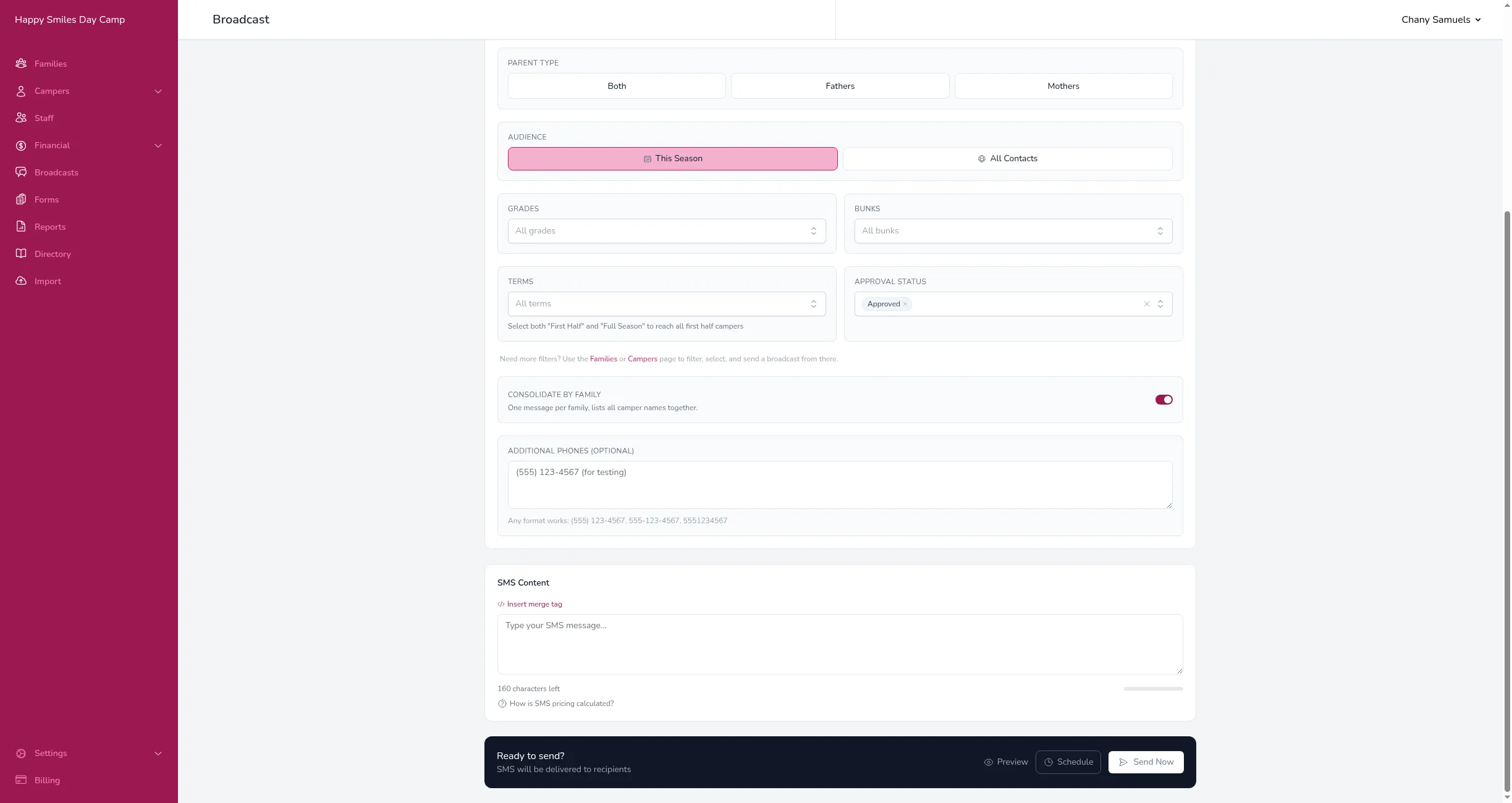
- Type your message in the text area.
- Click Send Now.
Character Limits and Segments
Section titled “Character Limits and Segments”Text messages are sent in chunks called segments. A single segment can hold up to 160 characters. If your message is longer than 160 characters, it gets split into multiple segments that are reassembled on the recipient’s phone.
The character counter below the text area shows how many characters you have left in the current segment. As you type, it updates in real time.
If your message includes emoji or special characters, the limit drops to 70 characters per segment. The counter will adjust automatically when this happens.
Every text is automatically prefixed with your camp’s name (for example, “Camp Oak: ”) so parents recognize who it’s from. If your number is on Campflow’s shared messaging account, a short “Powered by Campflow” line is also added at the end. Both the prefix and the suffix count toward the character total, so a long message plus these additions can tip into an extra segment. See Broadcast Costs.
You can use merge tags in SMS messages just like in emails. Click Insert merge tag above the text area to see available tags.
Phone Number Formats
Section titled “Phone Number Formats”When pasting phone numbers (in Paste List mode or the Additional Phones field), any common format works:
- (555) 123-4567
- 555-123-4567
- 5551234567
- +15551234567
We’ll automatically format them for delivery.
Delivery Statuses
Section titled “Delivery Statuses”After sending, open the broadcast to see the status of each message:
- Sent — The message was sent to the carrier.
- Delivered — The message was confirmed delivered to the phone.
- Undelivered — The carrier couldn’t deliver the message (e.g., the phone is off or the number is invalid).
- Failed — Something went wrong during sending.
You can hover over a failed or undelivered status to see more details about what happened.
Good to Know
Section titled “Good to Know”- SMS broadcasts are delivered to the father’s phone and/or mother’s phone fields on the family record, based on the Parent Type you select. Other phone fields on the family (home phone, secondary phone, country phone) do not receive broadcast messages.
- You can include staff members as additional recipients. See Including Staff Members for details.
- SMS costs $0.01 per segment. A 200-character message costs $0.02 (2 segments). See Broadcast Costs for details.
- Messages are sent from the phone number assigned to your camp during SMS & Voice setup.
- SMS messages are plain text only — no formatting, images, or attachments.
- When a parent replies to your text message, Campflow forwards their reply to your camp’s email and logs it on the family’s record. See Receiving Incoming Messages for how to view and respond to replies.