
Viewing Submissions
The Submissions tab shows every response your form has received. You can search, filter, view individual responses in detail, and export everything to a spreadsheet.
The Submissions Table
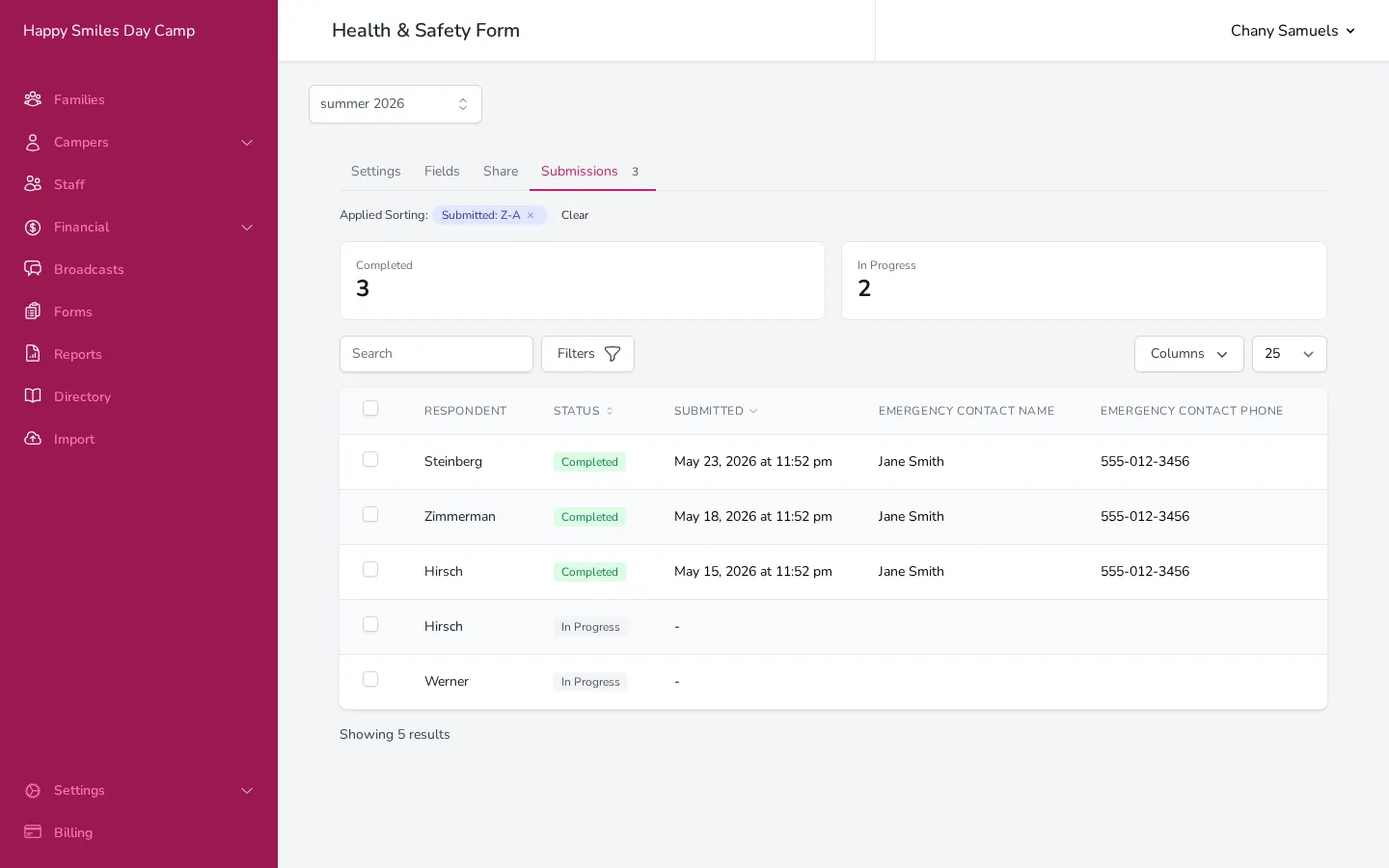
Section titled “The Submissions Table”At the top of the tab, you’ll see a summary showing how many submissions are Completed and how many are In Progress.
The table below lists each submission with:
- Respondent — the family name (linked to their family record) or “Anonymous” for general forms
- Status — Completed or In Progress
- Submitted — the date and time the form was submitted
- Field values — the table shows family-scoped field responses as additional columns, so you can scan answers without opening each one
Use the Search bar to find submissions by family or camper name, and the Filters button to filter by status (Completed or In Progress).
Viewing a Single Submission
Section titled “Viewing a Single Submission”Click any row in the table to open the submission detail panel on the right side of the screen.
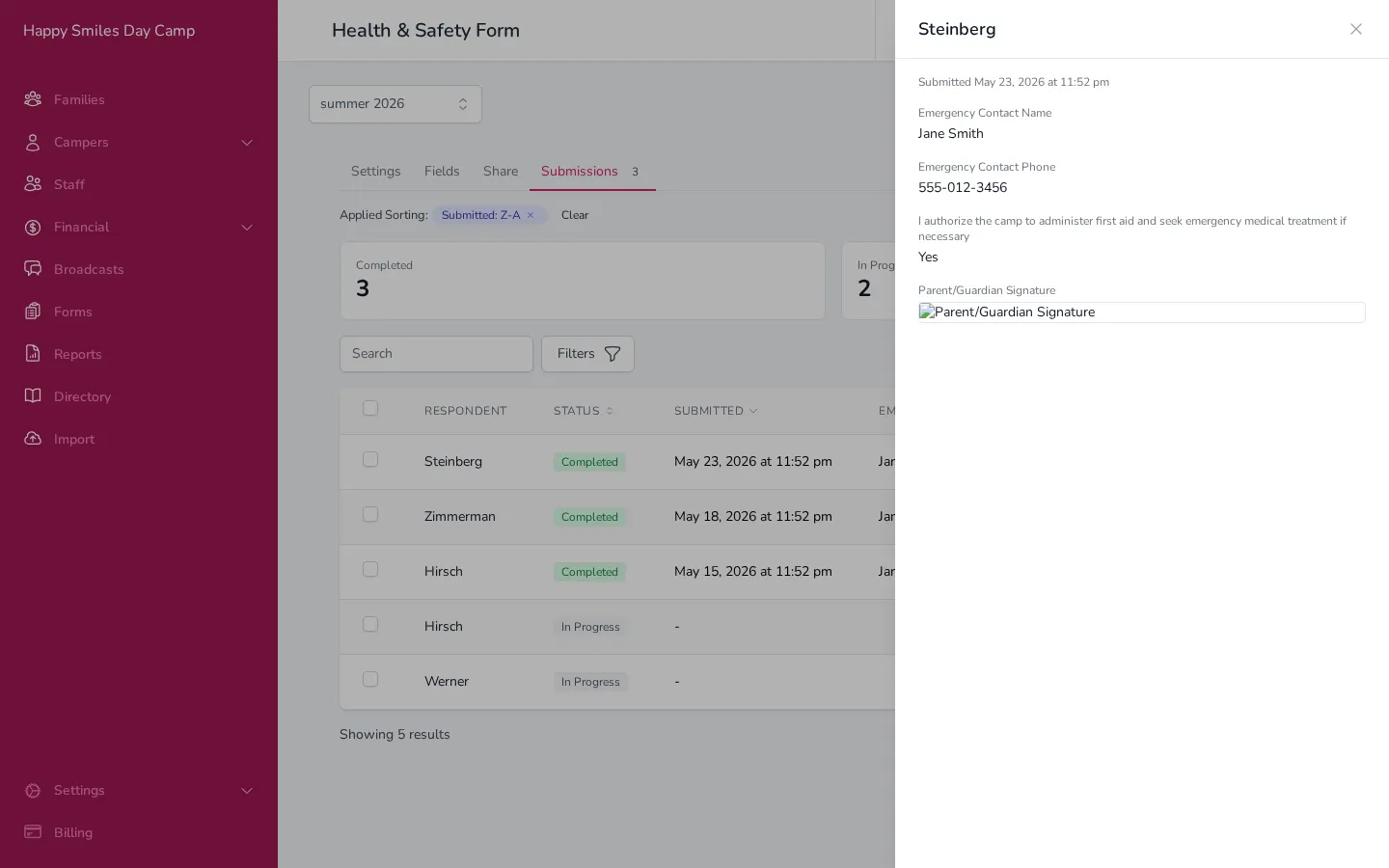
The detail panel shows:
- The respondent’s name at the top
- The date and time the form was submitted
- Every field’s label and the value that was entered
For forms with per-camper fields, the detail panel groups camper responses under each camper’s name, making it easy to see which answers belong to which camper.
File uploads appear as clickable links or image previews. Signatures are shown as images. Click the X in the top right to close the detail panel.
Exporting Submissions
Section titled “Exporting Submissions”To download submissions as a spreadsheet:
- Select the submissions you want to export using the checkboxes on the left side of the table. To select all, click the checkbox in the header row.
- Click Export from the bulk actions that appear.
The spreadsheet includes one row per submission (or one row per camper, if the form has per-camper fields). Columns include the respondent name, status, submission date, and every field’s value.
If you don’t select any specific submissions, the export includes all completed submissions.
Deleting a Submission
Section titled “Deleting a Submission”To remove a single submission:
- Click the trash icon in the actions column for that row.
- Confirm the deletion.
This permanently deletes the submission and all its response data. It cannot be undone.
Good to Know
Section titled “Good to Know”- The table refreshes automatically every 30 seconds, so new submissions appear without needing to reload the page.
- The respondent name in the table is a link — click it to open that family’s record in a new tab.
- In-progress submissions are form responses that someone started but hasn’t finished yet. They’re saved automatically as the person fills out the form, so if they come back later, they can pick up where they left off.