
Creating a Broadcast
A broadcast is a message you send to a group of parents or staff. You can send it as an email, text message (SMS), or voice call. This page walks you through the full process of creating and sending one.
How to Create a Broadcast
Section titled “How to Create a Broadcast”- Click Broadcasts in the sidebar.
- Click New Broadcast in the top right.
- Give your broadcast a title. This is for your reference only — recipients won’t see it.
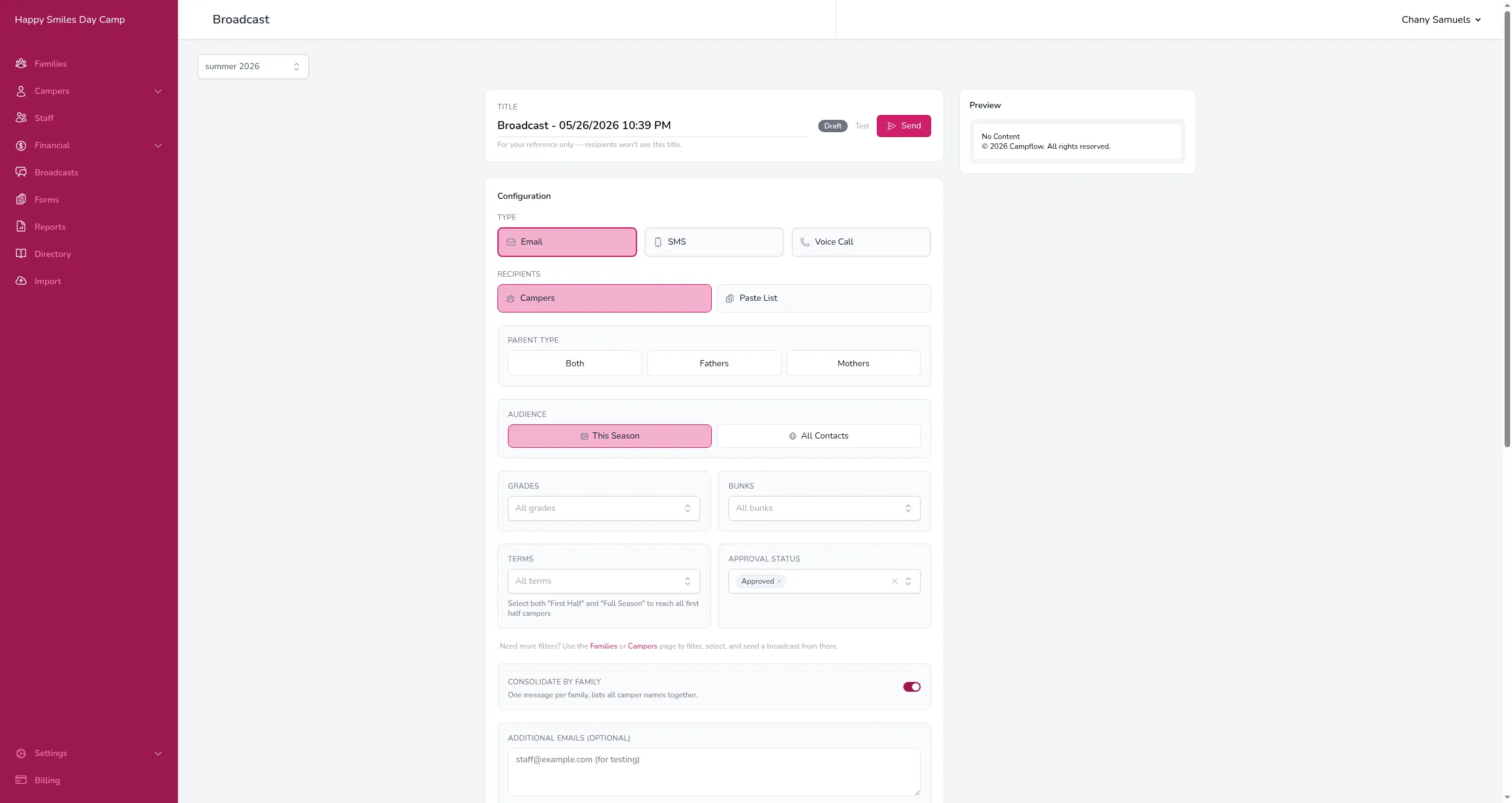
- Under Type, choose Email, SMS, or Voice Call.
- Under Recipients, choose who should receive the message. See Choosing Recipients for all the filtering options.
- Under Parent Type, choose whether to send to Both parents, just Fathers, or just Mothers.
- Write your message content (this varies by type — see below).
- Click Send Now at the bottom of the page.
A confirmation window will appear showing the estimated number of recipients and cost. Confirm to send.
Writing Your Message
Section titled “Writing Your Message”The content section changes based on the broadcast type you chose:
- Email — Enter a subject line, compose your message in the rich text editor, and optionally attach files. See Email Broadcasts.
- SMS — Type your message in the text area. A character counter shows how many segments your message will use. See SMS Broadcasts.
- Voice Call — Upload an audio file, record a message in your browser, or type a message for text-to-speech. See Voice Broadcasts.
You can personalize any message with merge tags — placeholders that automatically fill in each family’s name, balance, camper details, and more.
Sending a Test Preview
Section titled “Sending a Test Preview”Before sending to everyone, you can send yourself a real test. In the Send bar at the bottom of the page, click Preview (the eye icon) to open the test window. It’s pre-filled with your own email or phone number, but you can type any address or number to send the test to.
If your message includes merge tags, the window will let you select a family (and a specific camper, for per-camper broadcasts) so the test message fills in with that family’s real data. The family list matches your broadcast’s audience — if you hand-picked specific families, those are the ones offered. This lets you see exactly what a recipient will receive — with names, balances, and other details in place — before sending the full broadcast.
Saving and Returning Later
Section titled “Saving and Returning Later”Broadcasts save automatically as drafts. You can close the page and come back to finish it later — just find it in the broadcasts list and click on it.
After Sending
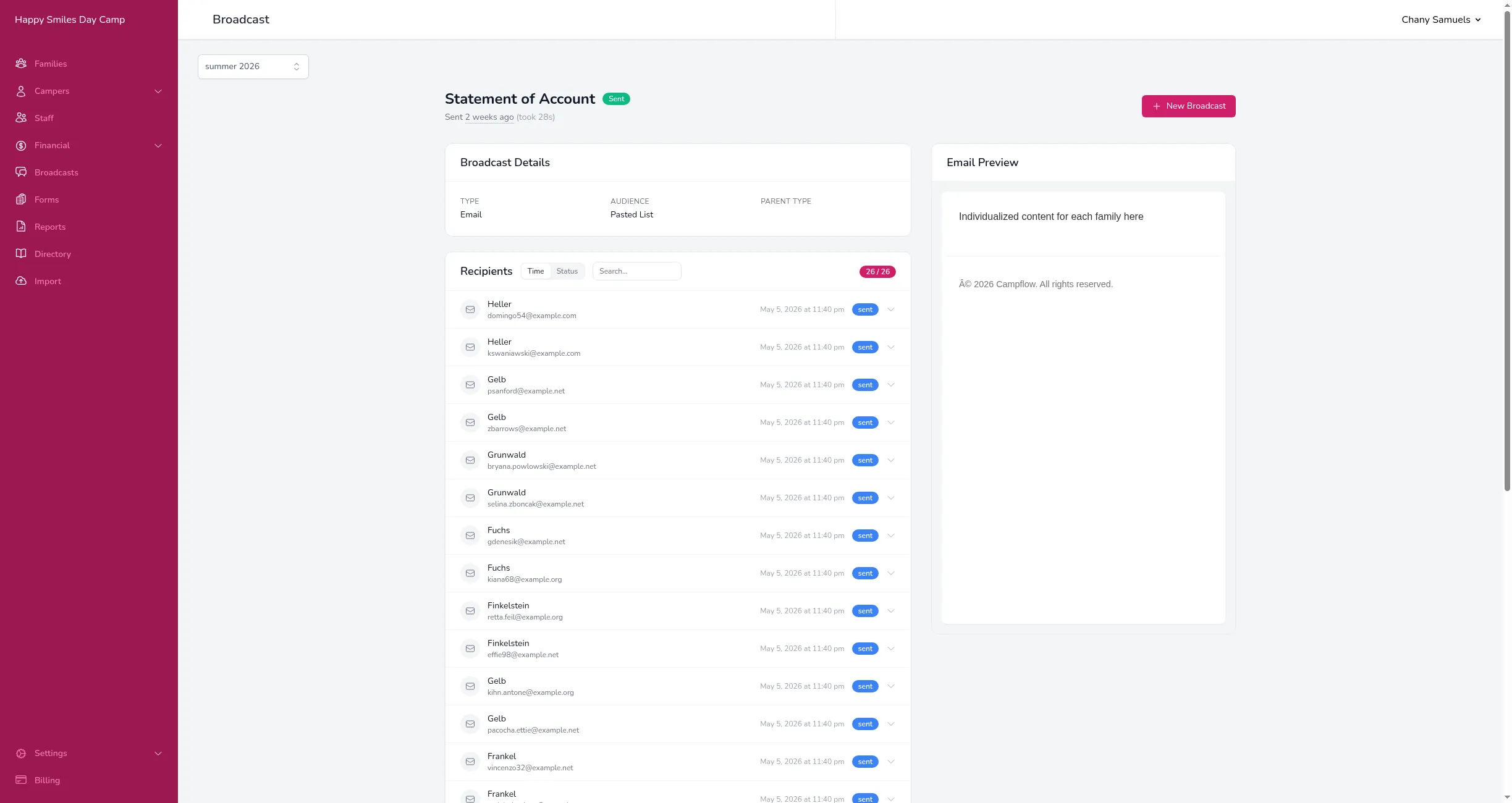
Section titled “After Sending”Once a broadcast is sent, you can open it to see delivery results. Each recipient is listed with their delivery status — sent, delivered, failed, or bounced. You can search and sort the list to quickly find specific people or check on issues.
Good to Know
Section titled “Good to Know”- If you click Send Now and nothing seems to happen, scroll up through the form. Required fields that are missing or incomplete will show a red error message directly below them. All broadcasts require a type (Email, SMS, or Voice), a recipient selection, a parent type, and message content. Fix the highlighted fields and try sending again.
- Broadcasts are saved as drafts automatically while you compose them. If you close the page without clicking Send, the broadcast stays as a draft — it is not sent. You can find your drafts on the Broadcasts page and resume editing or send them from there. To delete a draft you no longer need, click the trash icon next to it in the broadcast list. This is a common source of confusion: if families say they did not receive your message, check the Broadcasts page to see if the broadcast is still sitting in draft status.
- You can also start a broadcast from the Families or Campers page. Filter the table, select the people you want using the checkboxes, then choose Send Message from the Bulk Actions menu. The broadcast will be pre-filled with your selection.
- The Broadcasts list has a Direct Messages filter (All / Hide Direct Messages / Direct Messages Only). “Direct messages” are the one-off texts and emails you send to a single family from their Communication tab. Choose Hide Direct Messages to show only true broadcasts, or Direct Messages Only to review what you’ve sent to individual families.
- SMS and voice broadcasts are only available after you complete the SMS & Voice setup.
- If you’d rather send later, click Schedule instead of Send Now. See Scheduling Broadcasts.