
Email Broadcasts
Email broadcasts let you send formatted messages to parents and staff with rich text, images, attachments, and personalized details. Emails are available on every Campflow plan with no additional setup required.
How to Send an Email Broadcast
Section titled “How to Send an Email Broadcast”- Click Broadcasts in the sidebar.
- Click New Broadcast.
- Under Type, select Email.
- Choose your recipients.
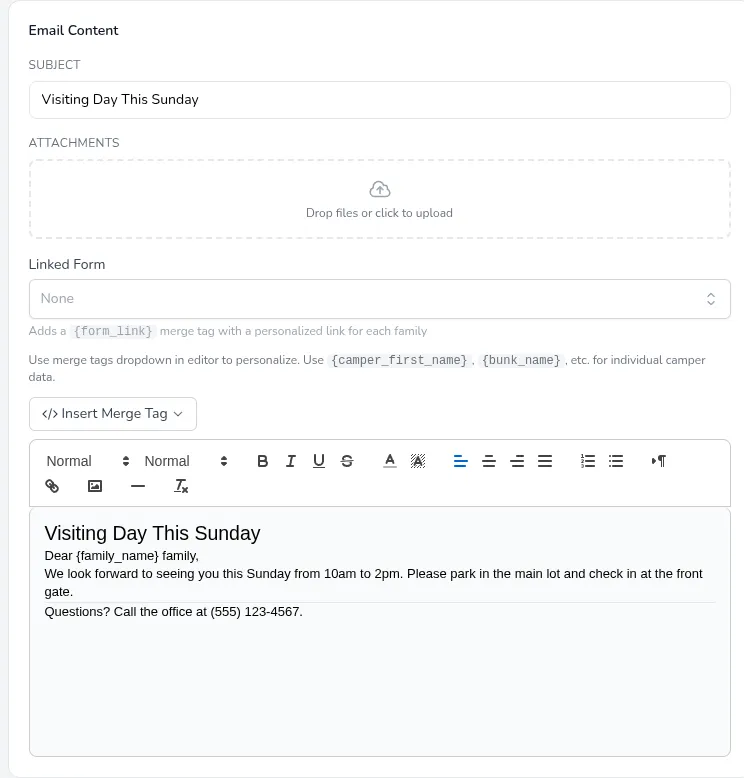
- Enter a Subject line. This is what recipients will see in their inbox.
- Write your message in the text editor.
- Click Send Now.
Formatting Your Message
Section titled “Formatting Your Message”The email editor includes a toolbar for formatting your message. Hover over any button to see what it does.
- Text styles — Bold, italic, underline, strikethrough
- Headings — Choose from Normal, Heading 1, Heading 2, etc.
- Text size — Small, Normal, Large, or Huge
- Colors — Change the text color or highlight text
- Alignment — Left, center, right, or justify
- Lists — Numbered or bulleted lists
- Links — Highlight text and click the link button to add a URL
- Images — Insert images into your email body
- Divider — Insert a horizontal line between sections of your email
- Remove formatting — Clear all formatting from the selected text, useful for cleaning up text pasted from another program
You can also use merge tags to personalize each email with the recipient’s family name, balance, camper names, and more. Click Insert Merge Tag above the editor to see all available tags.
Adding Attachments
Section titled “Adding Attachments”To attach files to your email:
- Scroll to the Attachments section above the editor.
- Drag files into the upload area, or click it to browse your computer.
- Attached files will appear in a list with their names and sizes.
- Click the delete button next to any file to remove it.
Supported file types: PDF, Word documents (DOC, DOCX), images (JPG, PNG), text files, Excel spreadsheets (XLS, XLSX), CSV files, and audio files (MP3, WAV). Each file can be up to 10 MB.
Sharing a Video
Section titled “Sharing a Video”Video files cannot be attached to an email. They are not a supported attachment type, and even a short video is far larger than the 10 MB limit — this is a limitation of email itself, not just Campflow. Instead, host the video online and link to it in your message:
- Upload the video to a video hosting service such as YouTube or Vimeo, or to a file service like Google Drive or Dropbox. On YouTube, you can set the video to Unlisted so only people with the link can watch it.
- Copy the video’s share link.
- In your email, highlight the text you want parents to click (for example, “Watch the video”), click the link button in the editor toolbar, and paste the link.
Parents click the link and watch the video in their browser.
Previewing Your Email
Section titled “Previewing Your Email”A live Preview panel on the right side of the screen shows how your email will look to recipients. This updates as you type, so you can see the final result before sending.
You can also click Preview (the eye icon) in the Send bar at the bottom to send a real test email to yourself or any address you type.
Linking a Form
Section titled “Linking a Form”If you want to include a link to a Campflow form in your email:
- Find the Form section on the broadcast page.
- Select the form you want to link from the dropdown.
- Use the
{form_link}merge tag in your message. Each recipient will get a personalized link to the form.
Delivery Tracking
Section titled “Delivery Tracking”After sending, open the broadcast to see delivery status for each recipient:
- Sent — The email was sent successfully.
- Delivered — The email was confirmed delivered to the recipient’s inbox.
- Bounced — The email couldn’t be delivered (usually an invalid address).
- Failed — Something went wrong during sending.
Good to Know
Section titled “Good to Know”- Emails are sent from the broadcast email address configured in your communication settings (Settings > Communication). If you’re using a free email provider like Gmail or Yahoo, your messages are much more likely to end up in spam. We strongly recommend using either a real domain email (like info@yourcamp.com) or the provided campflow.org email address.
- When parents reply to your email broadcast, their reply goes to your regular email inbox (Gmail, Outlook, etc.) — not back into Campflow. The reply-to address is your Camp Email, which you can view or update in Settings > General. This is separate from the Broadcast Email address that messages are sent from.
- Each email costs $0.005 to send. See Broadcast Costs for details.
- Broadcasts are the messages you send yourself. The automatic emails Campflow sends on your behalf — admission cards, statements, and failed-payment notices — are worded separately in Email Templates.
- If you’d rather send later, click Schedule instead of Send Now. See Scheduling Broadcasts.