
Hiring Staff
Once your staff application is open, everyone who applies appears on the Staff page. From there you review each applicant, move them through your hiring statuses, give the people you hire their jobs, and send them a personal link to finish their registration.
Reviewing Applications
Section titled “Reviewing Applications”Go to the Staff page. When the season takes applications, counts at the top show who Applied online, who is Under review, who is Hired, and who was Not accepted. Click a count to show only those people. The list starts out showing people who are hired or under review, so click Not accepted to see the people you turned down.
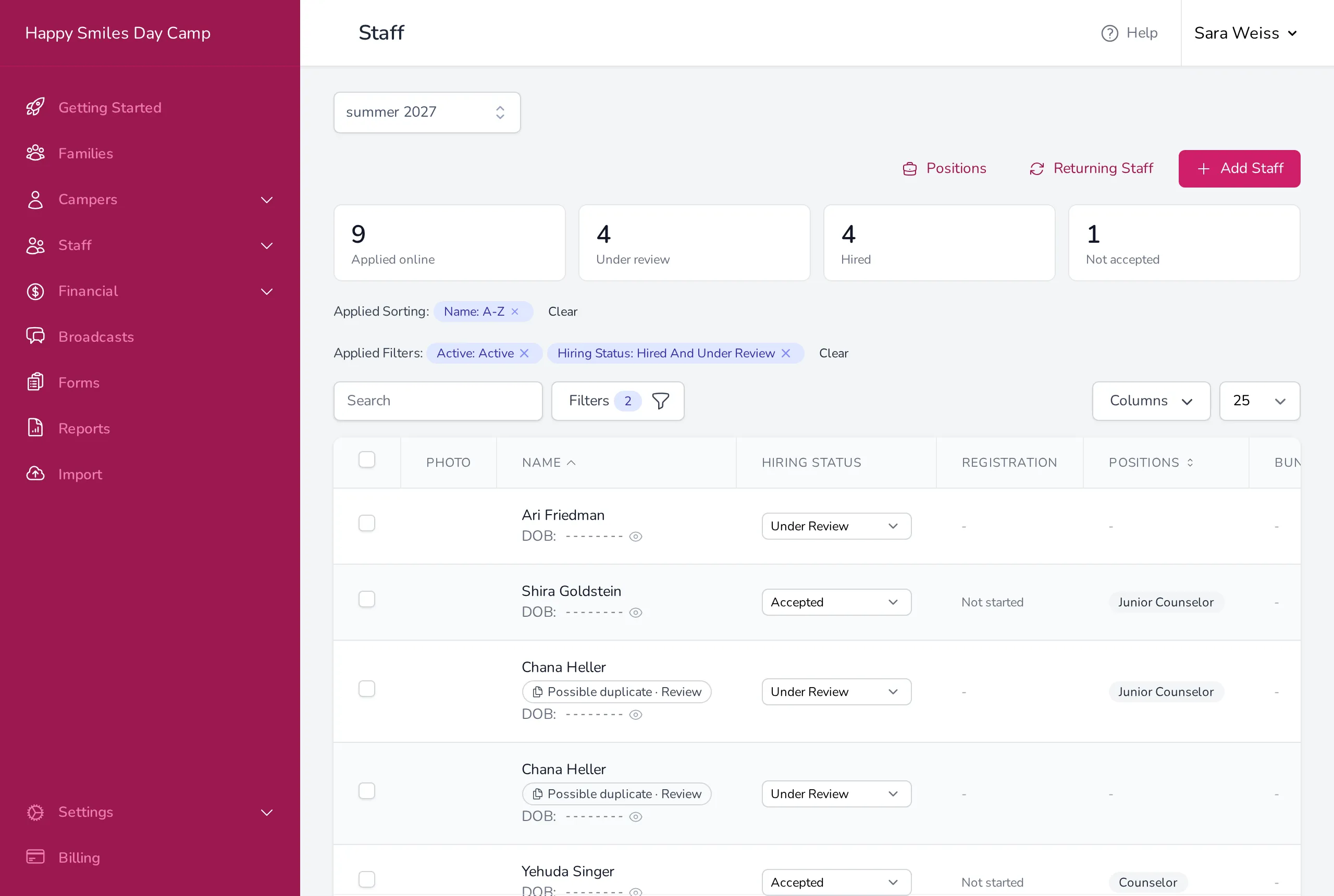
The table adds these columns:
- Hiring Status — Their status, which you can change right in the row.
- Applied For — The jobs they picked, in order, grouped by section when your application has sections.
- Age Group and Applied — The group they chose and the date they applied.
- Registration — Whether a hired staff member finished their registration, or how many required documents are still missing.
Turn columns on or off from Columns. Filters add Hiring Status, Age Group, and Registration (done or not done).
Click Edit in a row to see everything the applicant sent in, under Application and Registration: when they applied, the jobs they applied for, their agreements, signature, and documents. Their files are also under the Documents button in the row.
Changing a Hiring Status
Section titled “Changing a Hiring Status”Select a new status in the Hiring Status column. If the change involves money, an email, or bunks, a window shows what will happen before anything is saved:
- Hiring — The job charge Campflow will add, and the family it goes to.
- Moving off hired — The job and extra charges Campflow will remove (the application fee stays), any credit left on the family, and the bunks they will be taken off.
- Autopay — Whether the family’s autopay adjusts on its own. See Autopay.
- Email — Whether to email them about the change, using the email written for that status.
Click Change Status to confirm. A change with none of these is saved right away.
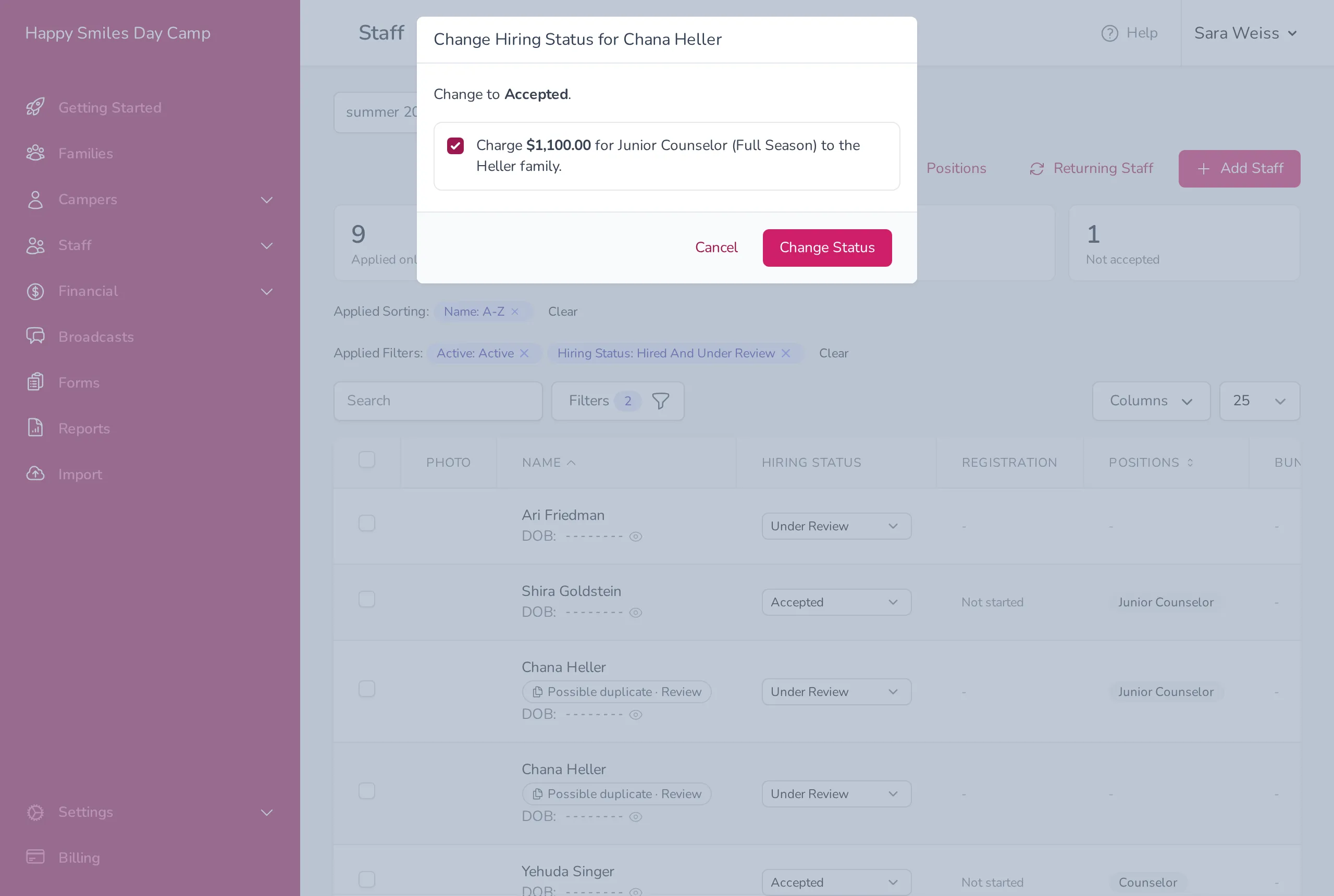
To change several people at once, select them and choose Change Hiring Status from the bulk actions, then choose the new status. When several people move off a hired status, their charges stay unless you check the box to remove them.
Resending a Status Email
Section titled “Resending a Status Email”To send someone their hiring status email again, open their record from the Staff page and click Resend Status Email. The button shows when their status has Email them turned on. Campflow shows the addresses it goes to, then sends the email for the status they have now, with its current wording. If the staff member is linked to a family, the email is also noted on the family’s Communication tab, where you can resend it too. You need the permission to change hiring statuses.
Assigning a Job
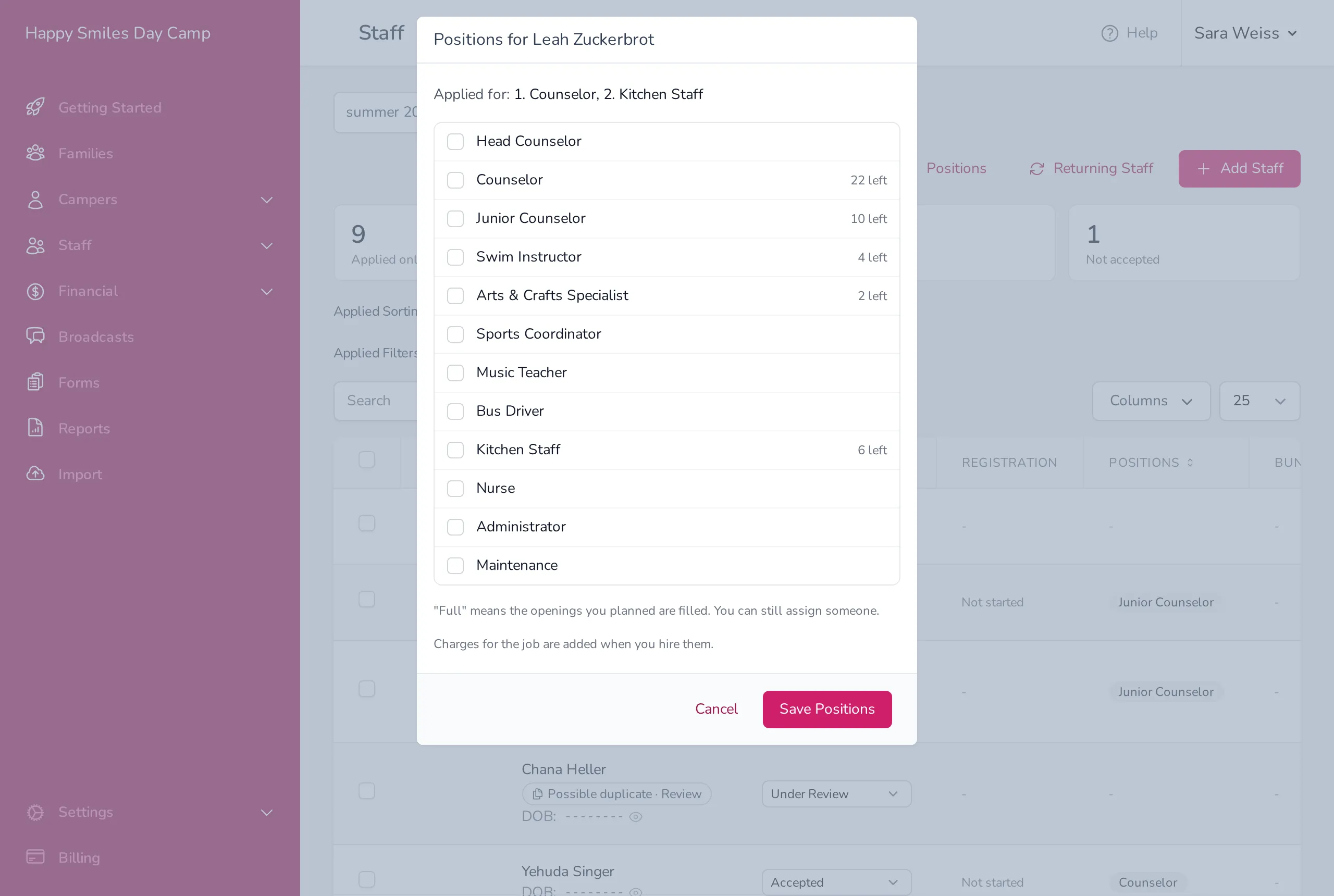
Section titled “Assigning a Job”When you hire someone who does not have a job yet, the Positions window opens. It lists the jobs they applied for and how many spots are left in each position. Check their position. If the job has a price, Campflow shows the charge and the family it goes to. Click Save Positions.
When Full-season staff pick jobs for each half is checked in Settings > Staff and someone works the full season, the window has a 1st Half and a 2nd Half column. The 2nd Half starts with the same jobs as the 1st. Change it only if they do a different job in the 2nd Half.
To change their job later, click the Job button (briefcase icon) in their row.
Registration After Hiring
Section titled “Registration After Hiring”Everyone you hire gets a personal registration link. There they check their details, answer the questions you ask on the registration, upload documents, check agreements, sign, and pay toward any balance. Questions asked on both the application and the registration come filled in with their application answers, so they are not typed twice.
The registration is optional. Hiring someone puts them on staff whether or not they register, and they only get the link when you send it. If the application already asks everything you need, do not send it, and take {staff_registration_link} out of the Accepted status email, which includes it to start with.
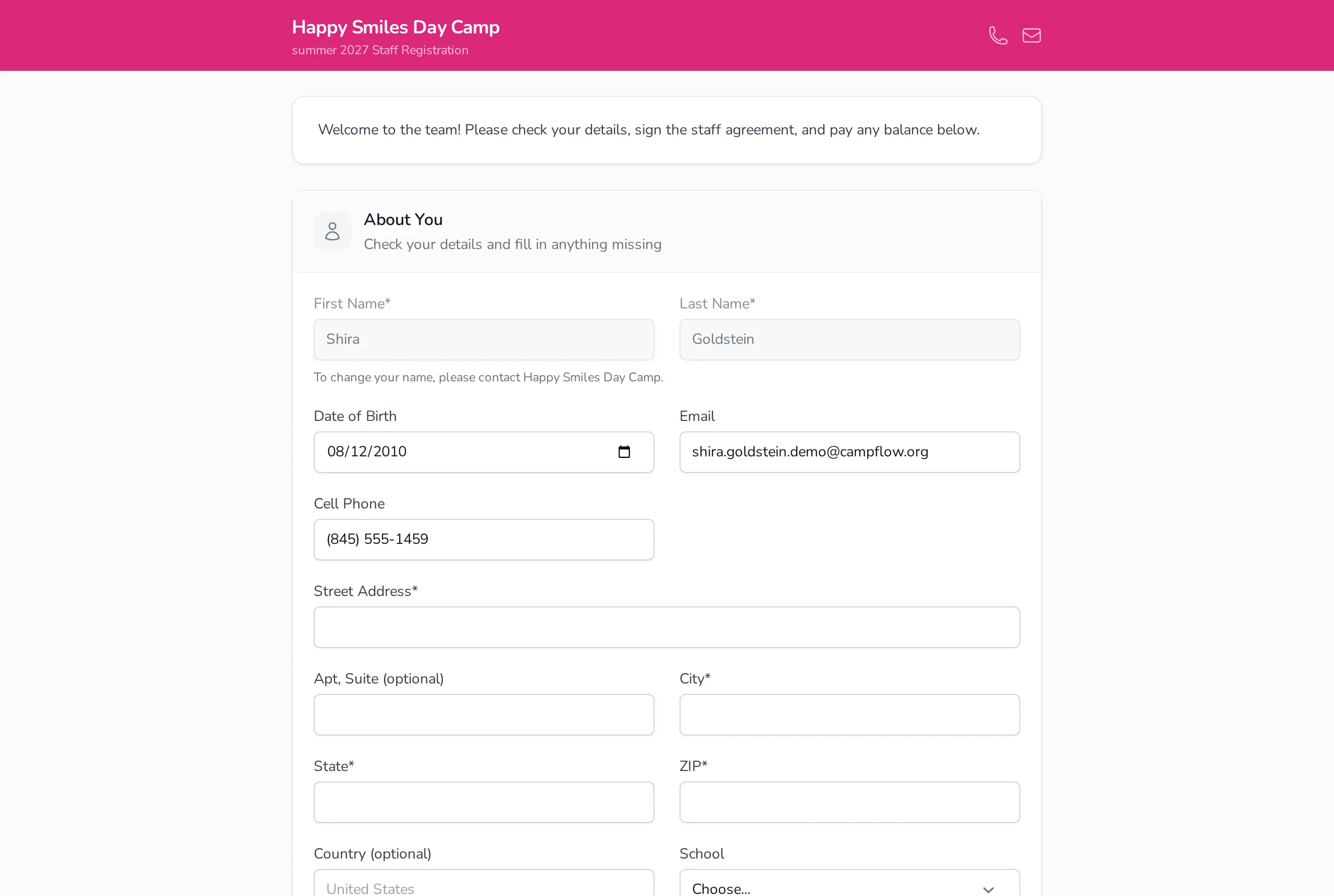
- Emailing the link — Select people on the Staff page and choose Send Registration Link from the bulk actions. Campflow first tells you how many people will get the email, and who is skipped and why (for example, a status that does not allow the registration, or no email address). You can also include the link in a hiring status email with
{staff_registration_link}. - Copying the link — Click Edit in their row and find Registration Link under Application and Registration.
The link only works in a status chosen under Can register after hiring (Settings > Staff, in Registration (after hiring)), like Accepted. In other statuses, the page says their application is being reviewed or that the link is not active. Documents and agreements follow the positions and age groups you gave them, so a nursing license only appears for a nurse.
When they submit, the Registration column shows them as done. They can come back to the same link to update their details or pay more.
Returning Staff
Section titled “Returning Staff”To bring back staff from an earlier season, click Returning Staff at the top of the Staff page, check the people you want, and click Add to the season. They are added hired, with the positions, term, and pay from their last season. When their jobs have prices, check Add their job charges to add those charges too. See Returning vs. Seasonal Staff.
Duplicates
Section titled “Duplicates”Every application creates a new staff record, even if the person worked for you before. When two records have the same first name and email, or the same name and date of birth, a Possible duplicate badge appears under the name.
Click the badge and choose which record to keep. Each choice shows whether it is the older or newer record, with its email, phone, city, and hiring status.
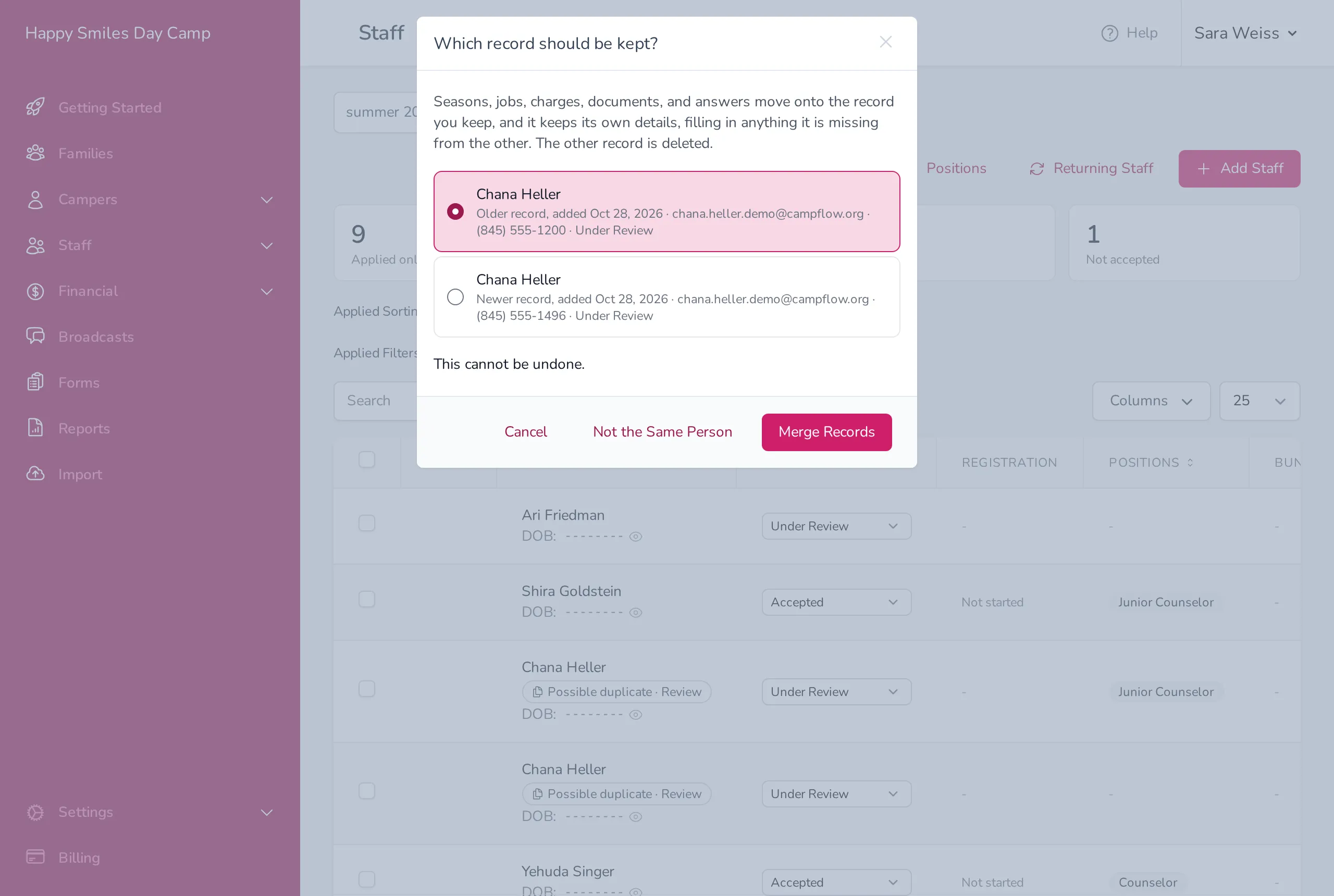
- Merge Records — Moves their seasons, positions, charges, documents, emergency contacts, and answers onto the record you keep, and deletes the other one. The record you keep keeps its own details and only fills in what it is missing from the other one.
- Not the Same Person — Removes the badge. Campflow does not flag that pair again.
When both records are in the same season, they become one season. The record you keep wins, and anything only the other one has (jobs, agreements, pay, charges) is added. Nothing is charged twice, and anyone hired stays hired.
If their charges or payments are on two different families, merge the families first: on the Families page, select both and choose Merge Families, then come back and merge the records.
Good to Know
Section titled “Good to Know”- Hiring someone is what adds their job charge, puts them in bunk lists and broadcasts, and counts their pay in the budget. Applicants are not on any of these.
- If someone’s pay is empty when you hire them, Campflow fills in the usual pay for their job or age group from the Positions page. Pay you entered yourself is never replaced.
- Changing hiring statuses, assigning jobs, and anything that adds or removes charges needs the Hire staff and change hiring status permission. Removing someone who has charges needs it as well as permission to delete staff. See Roles and Permissions.
- Merging deletes one of the two records, so it needs permission to both edit and delete staff.
- Siblings who share a parent’s email are not flagged as duplicates, as long as their first names differ.
- A status in use cannot be deleted, and its meaning cannot be changed while people are in it.